Warning: Cannot modify header information - headers already sent by (output started at D:\Inetpub\vhosts\easy-for-you.com\easyforyou.be\SP\helpprinthelp.php:4) in D:\Inetpub\vhosts\easy-for-you.com\easyforyou.be\SP\helppage0.php on line 2
Warning: Undefined array key "style" in D:\Inetpub\vhosts\easy-for-you.com\easyforyou.be\SP\helppage0.php on line 3 Gestión de existencias y facturación a bajar gratis (Códigos de barras) Ayuda
El menú azulado en el lado izquierdo es igual que el del software "Easy For You". Use este menú para solicitar ayuda y encontrar una respuesta a sus preguntas.
Warning: Cannot modify header information - headers already sent by (output started at D:\Inetpub\vhosts\easy-for-you.com\easyforyou.be\SP\helpprinthelp.php:4) in D:\Inetpub\vhosts\easy-for-you.com\easyforyou.be\SP\helpdocument.php on line 3
Warning: Undefined array key "style" in D:\Inetpub\vhosts\easy-for-you.com\easyforyou.be\SP\helpdocument.php on line 4 Gestión de existencias y facturación a bajar gratis (Códigos de barras) Documento
Haga clic en la Botón (Tab) para elegir el documento que desea abrir.
Pedidos=BC1 Facturas=FT1 Notas de crédito=NC1 Albarán=OP1 Etc…
Haga clic en el botón para seleccionar un cliente o un proveedor. Haga clic en el botón para abrir un documento nuevo.
Haga clic en el botón Buscar (anteojos) para encontrar un cliente o proveedor. Y haga otra vez clic en el botón [+] para abrir un documento nuevo.
P.D.: si necesita hacer una búsqueda mientras añade un documento, pulse el botón DERECHO del ratón y selecionne para buscar por Códigos secundarias.
Los precios, cantidades, etc. se pueden cambiar. Con el módulo GESTION DE STOCK, es más fácil ya que él mismo actualiza las cantidades cada vez que crea una factura.
Para agregar líneas, haga clic en el botón , o pulse la tecla de dirección hacia abajo o la tecla F2.
Hecho ésto, guarde el documento apretando el botón o pulsando la tecla F10. Si desea imprimirlo haga clic en o pulse la tecla F7.
Para cambiar las cantidades de productos en su inventario,
haga una factura de compra :
1) Haga clic en el botón "Compras" en la barra de herramientas.
2) Elija "Factura de compra" o "Inventario".
3) Arriba a la izquierda, escriba REG para crear una Código de proveedor (ésto sirve para su inventario).
4) Añada un documento haciendo clic en el botón "+" en la barra de herramientas.
5) Seleccionar el producto con el botón de búsqueda y ajustar la cantidad en stock (Use cantidades negativas para reducir el stock).
6) Si se trata de un nuevo artículo, descríbalo y pulse la tecla Enter. Después, añada el nuevo archivo y meta los datos sobre el artículo. Hecho ésto, vuelva al documento e indique las cantidades a sumar al stock.
NB: acciones de forma automática saliente explicarse por cualquiera de las facturas de venta, Albarán, recibo.
Para sacar en pantalla todos los documentos de un tipo de documento, haga dos veces clic en la casilla "Buscar clientes" Aparecerán todos empezando por los más recientes.
Cómo funciona la casilla Código:
Escriba la Código del cliente/proveedor y pulse ENTER
o
en caso de duda: escriba las primeras letras seguidas de * (asterisco) y pulse ENTER. También puede buscar por CIF/NIF y pulsar ENTER
o
Para seleccionar un cliente o proveedor, haga clic en el botón Buscar (anteojos) y otra vez clic en el botón (+) o pulse la tecla F2 para abrir un nuevo documento.
Para ver en pantalla todos los documentos de un tipo de documento por clientes, búsquelo en la casilla "Buscar clientes" o haga dos veces clic en su nombre si aparece en la lista de los documentos.
Apriete el botón derecho del ratón y seleccione el icono de los anteojos para hacer una búsqueda de documentos por los importes
Apriete el botón derecho del ratón y elija la opción "insertar documento" para abrir un documento fuera de secuencia
Este cursor de selección le permite determinar el número de documentos que aparecen en pantalla después de cada búsqueda. PD: cuan más pequeño el valor, más rápida la búsqueda; pero los documentos no recientes no saldrán en pantalla.
Seleccione los documentos a copiar, por ejemplo los pedidos abiertos de un cliente, haciendo clic + tecla CTRL en el margen de la lista de documentos.
Apriete el botón derecho del ratón y seleccione "Guardar como". Luego, elija el libro contable en el que quiere copiar los documentos seleccionados (por ejemplo, FT1 para copiarlos en una factura).
Una vez copiados los pedidos, pasan a tener el estatuto "Cerrados". Los campos "Cantidades" y "Pedidos pendientes" se actualizan a medida que se añaden artículos a documentos.
Cómo crear un nuevo Packages: Al seleccionar los artículos en un documento, apriete el botón derecho del ratón y elija "Guardar Packages"
El conjunto formado por artículos y/o textos presentes en este documento constituye un Packages. Este Packages se guarda y puede ser llamado (cargado) en otro documento.
Cómo llamar un Packages : Al seleccionar artículos en un documento, añada una línea. Luego apriete el botón derecho del ratón y elija "Cargar Packages".
El documento abierto recoge el conjunto de todos los artículos y texto. Por ejemplo, si no pone un tic en la casilla "Precios", aparecerán por defecto los precios actuales de los artículos.
Para ver los precios, haga deslizar el cursor por el documento hasta la casilla de precios y pulse la tecla F1. Se abre otra ventana y aparecen :
Los precio de artículos, a la izquierda Y a la derecha, el historial de ventas a un cliente en el documento para el artículo activo. Abajo, un campo donde se mete el precio con IVA incluído.
Para integrar un precio en el documento, basta con hacer clic en la lista de precios de la izquierda o en uno de los precios anteriores del historial.
Al crear el cuerpo de un documento, puede añadir más texto pulsando el botón derecho del ratón y seleccionando "Insertar texto", en el menú. A continuación, escriba el texto en la ventana. PD: use la tecla "Insert" para meter líneas vacías.
Si desea conservar formas de cortesía o cualquier otro tipo de texto, apriete el botón derecho del ratón y elija la opción "Guardar Packages".
Para crear más formas de cortesía, etc. abra un "OP1-Albarán". Escriba un texto. Luego, apriete el botón derecho del ratón y elija "Guardar Packages".
Ejemplos de documentos "cerrados": facturas que ya se imprimieron o e-mails que ya se enviaron. Pero también, los pedidos copiados en una factura. Véase Archivo->Configuración de documentos->"Cerrado para..."
Los documentos abiertos son todos aquellos que no están "cerrados".
Cómo agregar un PAGO a un documento cerrado: abra el menú Edición->Pagos (click right on the document number)
Véase también en el menú Ayuda->F.A.Q. (preguntas más frecuentes)
Para meter correcciones en un documento, abra el menú Editar->Abrir documento
Si desea otro diseño para sus documentos, use un editor HTML como Front-Page o Dreamweaver y
haga los cambios oportunos al fichero LAYOUTMOD.HTM en [cprogramfiles]. Menu Help->F.A.Q. #17
Para más informaciones sobre los precios, véase la opción :EFYLAYOUT.
Si no tiene mucha experiencia con editores HTML, véase la opción: EFYLAYOUT+EFYLAYOUT2
Puede consultar, en cualquier momento, el listado de los cobros pendientes y el saldo a pagar de los clientes.
Forma de pago habitual de ese cliente o proveedor. Atención: los documentos en los que consta una forma de pago, se consideran como "pagados" y desaparecen de la lista de documentos "Sin pagar".
Cómo agregar un PAGO a un documento cerrado: abra el menú Edición->Pagos (click right on the document number)
Véase también en el menú Ayuda->F.A.Q. (preguntas más frecuentes)
Para meter correcciones en un documento, abra el menú Editar->Abrir documento
Para imprimir el modo de pago en un documento AUN por pagar, seleccciónelo en el menú Archivo->Clientes y proveedores->Pago.
El IVA se calcula en base al n° Códigodo en el documento.
Si añade una línea para otro artículo en un documento, con la misma moneda que en Herramientas->Parámetros->Principales->Monedas, el programa usa el código IVA que indica el archivo del artículo. En caso de no ser así, el código IVA por defecto usado es que está indicado en la casilla IVA en ventas o IVA en compras.
Cada vez que añade un artículo, el programa usa el código IVA por defecto indicado en Herramientas->Parámetros->Contabilidad->IVA en ventas o IVA en compras.
La pestaña Pendientes muestra todos los pedidos ABIERTOS de clientes (o de proveedores, en el caso de compras).
(PEP=pedidos pendientes de entrega íntegra).
REALIZAR UNA ENTREGA PARCIAL:
Doble click, en la pestaña Pendientes, para seleccionar un cliente.
A continuación, indique, en la columna "entregado" la cantidad a entregar de los artículos pedidos por el cliente y pulse F10para entrar todas las operaciones.
Para generar la factura para estos artículos, a la par que se actualiza el nivel de existencias, haga click en la casilla Réf. Cliente y haga click en el botón derecho del ratón y seleccione: Guardar comopara elegir en el desplegable el documento que desea.
Aviso:
Las líneas relativas a los pedidos entregados desaparecen de la pantalla, cada vez que se genera la factura correspondiente.
Los pedidos se cierran automáticamente a cada entrega total de los artículos.
Lo mismo ocurre en el caso de los pedidos pendientes a proveedores
(o sea, las compras).
La impresión y la vista previa de documentos muestra las cantidades aún por entregar.
Warning: Cannot modify header information - headers already sent by (output started at D:\Inetpub\vhosts\easy-for-you.com\easyforyou.be\SP\helpprinthelp.php:4) in D:\Inetpub\vhosts\easy-for-you.com\easyforyou.be\SP\helpproduits.php on line 2
Warning: Undefined array key "style" in D:\Inetpub\vhosts\easy-for-you.com\easyforyou.be\SP\helpproduits.php on line 3 Gestión de existencias y facturación a bajar gratis (Códigos de barras) Artículos
La Código del artículo es creada a partir de una asociación lógica entre unos caracteres y/o números lo cual facilita la búsqueda del artículo en el fichero.
Ejemplo de Código de un artículo:MOBNOK6610 MOB=abreviatura de móvil, NOK=abreviatura de la marca (Nokia), 6610=Modelo
Usted mismo puede crear sus propias Códigos en base a los artículos con que trabaja.
Esta Código facilita la búsqueda un archivo con sólo escribir una Código entera o los primeros caracteres de la Código seguidos de * (asterisco).
Veamos un ejemplo:MOVNOK* pulse ENTER o F6. Aparece *Nokia en la lista de móviles. Las demás Códigos están ordenadas por orden alfabético y se pueden elegir con las teclas de dirección.
SEGUNDA Código DE BUSQUEDA. Se trata de otro tipo de refencia a buscar. Si no encuentra la primera: una Código con números o un código de barras, por ejemplo ; puede utilizar una segunda Código que sea una marca o un proveedor.
P.D.: si necesita hacer una búsqueda mientras añade un documento, pulse el botón DERECHO del ratón y selecionne para buscar por Códigos secundarias.
You can activate the printing of the second category for your documents in menu :
Archivo->Configuración de documentos->Imprimir la Código secundaria
El software carga la descripción del artículo en el idioma del cliente o proveedor cuando se elaboran los documentos (facturas, albaranes,... etc).
Las descripciones no se tienen que volver a escribir para los demás idiomas. Por ejemplo, si desea que la descripción de sus artículos sea en inglés, el programa la carga automáticamente en inglés en todos los idiomas.
Si lo desea, puede cambiar el valor por defecto mientras crea un documento.
El programa busca el PROVEEDOR en la base de datos de proveedores, usando las primeras letras seguidas de un asterisco. Si todavía no existe, añada el nuevo proveedor.
Si no existe la Código, el software le deja añadir una nueva Código y abre solo la pantalla de gestión de los proveedores. Si no desea meter ningún código de proveedor, elija la Código "ME".
Los impuestos son valores por defecto (véase Herramientas -> Parámetros)
Si no le conviene el código, escriba un asterisco ( *) y pulse ENTER. Aparece una ventana con los códigos para elegir. También puede crear sus propios códigos.
El IVA se calcula en base al n° Códigodo en el documento. Si añade una línea para otro artículo en un documento, con la misma moneda que en Herramientas->Parámetros->Principales->Monedas, el programa usa el código IVA que indica el archivo del artículo. En caso de no ser así, el código IVA por defecto usado es que está indicado en la casilla IVA en ventas o IVA en compras.
Cada vez que añade un artículo, el programa usa el código IVA por defecto indicado en Herramientas->Parámetros->Contabilidad->IVA en ventas o IVA en compras.
La Contrapartida (tipo de documento de compras y ventas) puede serle de gran ayuda en caso de querer conectar "Easy For You" con otro software de contabilidad.
Se puede cambiar el código por defecto en el menú Herramientas -> Parámetros.
La CONTRAPARTIDA y la cuenta de control (o sea las cuentas principales de compras y ventas en su contabilidad) se pueden añadir al software para un uso posterior con otro programa de contabilidad.
Se puede cambiar el código por defecto en el menú Herramientas -> Parámetros.
La Código del artículo es creada a partir de una asociación lógica entre unos caracteres y/o números lo cual facilita la búsqueda del artículo en el fichero.³
La CANTIDAD MINIMA e Optimo le permite imprimir la lista de los artículos a pedir.
OPTIMAL QUANTITY = ideal Quantity in stock. (If stock passes in minimum lower part of the quantity, the order supplier proposed in the list of the products will be equal to the optimal quantity minus the quantity available round to conditioning.
CONDITIONING makes it possible to automatically round the quantities in the lists of products to be ordered to the suppliers. See menu Archivo->Configuración de documentos->Cantidad del documento = Cantidad de empaquetado
The QUANTITY ORDERED = Total quantities of products in the OPEN customer orders or to also suppliers. Check the menu Herramientas->Reorganizar->Recalcular las cantidades pedidas (pedidos abiertos)
Las casillas de "Reparador" muestran cuántas piezas de clientes y del stock están siendo reparadas.
Haga una factura de compra :
1) Haga clic en el botón "Compras" en la barra de herramientas.
2) Elija "Factura de compra" o "Inventario".
3) Arriba a la izquierda, escriba REG para crear una Código de proveedor (ésto sirve para su inventario).
4) Añada un documento haciendo clic en el botón "+" en la barra de herramientas.
5) Seleccionar el producto con el botón de búsqueda y ajustar la cantidad en stock (Use cantidades negativas para reducir el stock).
6) Si se trata de un nuevo artículo, descríbalo y pulse la tecla Enter. Después, añada el nuevo archivo y meta los datos sobre el artículo. Hecho ésto, vuelva al documento e indique las cantidades a sumar al stock.
NB: acciones de forma automática saliente explicarse por cualquiera de las facturas de venta, Albarán, recibo.
Véase menú :Herramientas->Reorganizar->Recalcular las existencias en base a los documentos de compras, ventas y pedidos pendientes realizados.
Pr. de compra
Corresponde al precio del artículo en la última factura de compra.
Pr. de coste
Calculado para un artículo en base al valor total de la cantidad en stock y sumando el total de la última factura de compra. Ahora, divida ese resultado por la cantidad de artículos y obtendrá el precio medio ponderado.
Precio (1,2,3,4,5)
Los 5 PRECIOS DE VENTA se calculan en base a los márgenes de rendimiento predefinidios en el menú Herramientas -> Parámetros.
Ejemplo de Código de un artículo:MOBNOK6610 MOB=abreviatura de móvil, NOK=abreviatura de la marca (Nokia), 6610=Modelo³
Margen (1,2,3,4,5)
El software calcula automáticamente el precio de venta a partir del margen de rentabilidad que Ud. determina.
Véase menú :
Herramientas->Parámetros->Artículos->Margen
IVA incl. (1,2,3,4,5)
El precio con impuestos incluídos aparece en la derecha en la pantalla.
Por cantidad
Decreasing tariff per quantity.
P.D: Presionando el botón , en la hoja de un artículo, ocultará los precios de compra y venta, evitando así la curiosidad de ciertos clientes.
Si lo desea, puede cambiar el valor por defecto mientras crea un documento.
Permite meter los metros cuadrados de artículos vendidos. Para este tipo de artículos, el precio de venta se da por paneles o longitud y el precio de compra por metro cuadrado o m2.
When you print a document, the of the products weight is printed on the bottom.
Véase menú :
Archivo->Configuración de documentos->Peso
Herramientas->Parámetros->Artículos->Unidad de peso
If a product is already used in any document, it is not possible any more to erase it because of the relations established between products->document. In this case, please check this box, the product will disappear from your lists, selections and E-Commerce.
En este campo, puede meter códigos propios de su empresa para hacer filtrajes personalizados, marcar u archivar artículos específicos. Las listas de artículos, clientes u operaciones, preven funciones de extracción y rastreamiento.
Example for the sizes and colors: In this fields, for a product of size 34 and red color note: S: 34/C: R
During the encoding of a document, since using the advanced search for a product (binoculars), in research on the additional fields, if you note T: 34 + ENTER research posts you the products of size 34.
If you note S: 34/C: R + press ENTER The research posts you the red products of size 34. It is possible to combine this research with the categories field, the wording, supplier, references of the required product.
All this selections are also possible in menu List->Movements
Esta Código facilita la búsqueda un archivo con sólo escribir una Código entera o los primeros caracteres de la Código seguidos de * (asterisco).³
Véase menú :Archivo->Categorías
Warning: Cannot modify header information - headers already sent by (output started at D:\Inetpub\vhosts\easy-for-you.com\easyforyou.be\SP\helpprinthelp.php:4) in D:\Inetpub\vhosts\easy-for-you.com\easyforyou.be\SP\helpclifou.php on line 2
Warning: Undefined array key "style" in D:\Inetpub\vhosts\easy-for-you.com\easyforyou.be\SP\helpclifou.php on line 3 Gestión de existencias y facturación a bajar gratis (Códigos de barras) Archivo Clientes & Proveedores
La Código del cliente se compone de caractéres y/o de números para poder identificarlo fácilmente.
Por ejemplo, CAYMANPARTNER de "CAYMAN & PARTNERS". Le resultará muy fácil encontrar un cliente, escribiendo la Código entera o parte de la Código seguida de un asterisco (*).
Por ejemplo, después de haber añadido un cliente, escriba AL* para hacer una búsqueda y pulse ENTER o la tecla Tab.
Entonces aparece una ventana con los nombres de todos los clientes por orden alfabético desde AL. Use las teclas de dirección para seleccionarlo y pulse ENTER o utilice el ratón.
CIF
En algunos países, los clientes disponen de una CIF/NIF. Ese número corresponde a un algoritmo y no vale uno cualquiera. Los dos primeros números indican dónde reside el cliente.
Más información
Los datos indispensables que son: Nombre/Empresa, Dirección, Tel, etc.
Avisos
En este campo, puede meter códigos propios de su empresa para hacer filtrajes personalizados, marcar u archivar artículos específicos. Las listas de artículos, clientes u operaciones, preven funciones de extracción y rastreamiento.
Vol. negocios
Monto total (impuestos no incluídos) para ese cliente o proveedor: fact. cerradas menos notas de crédito. El volumen de negocios es actualizado cuado se imprime el doc o se envía un e-mail por primera vez. Desproteger un doc. hace lo opuesto.
Importe total, incluídos los impuestos menos la entrada pagada por el cliente o proveedor. Esto incluye aquellos documentos sin ninguna forma de pago precisada. El programa actualiza los datos en el momento de hacer el pago.
El programa utiliza los códigos INTRACOM país y envío para sacar un informe con estadísticas internas.
Límite
This field makes it possible to limit the authorised maximum credit limit for a customer. This credit is calculated on the basis of total of the open sales and not paid documents. If this field is to 0, EasyForYou does not take use the limit.
Código secundaria
La Código de este cliente puede ser la misma que la que se usa en otro software de contabilidad.
Idioma
El programa crea e imprime documentos en el idioma del cliente. No siempre es la del usuario.
Moneda
Se aplicará por defecto esta moneda a todos los documentos de este cliente o proveedor. Puede actualizar el tipo de cambio en el documento.
Si lo desea, puede cambiar el valor por defecto mientras crea un documento.
Cuando la moneda del cliente no es aquella por defecto (Herramientas - > Parámetros), prevalece, en los documentos, la moneda correspondiente al código IVA de la ficha.
Pago en
Forma de pago habitual de ese cliente o proveedor. Atención: los documentos en los que consta una forma de pago, se consideran como "pagados" y desaparecen de la lista de documentos "Sin pagar".
Si lo desea, puede cambiar el valor por defecto mientras crea un documento.
Para imprimir el modo de pago en un documento AUN por pagar, seleccciónelo en el menú Archivo->Clientes y proveedores->Pago.
Descuento
Se aplicará por defecto ese descuento a todos los documentos a nombre de ese cliente o proveedor. Si lo desea, puede ajustarlo en el documento.
Si lo desea, puede cambiar el valor por defecto mientras crea un documento.
Agente
Ese código le permite calcular el volumen de negocios realizado por un vendedor, sacar la cartera de clientes de un vendedor, etc.
Caducidad
Determinar el número de días para calcular el plazo de pago en los documentos.
Si lo desea, puede cambiar el valor por defecto mientras crea un documento.
Total de copias
Total de copias por defecto a imprimir para ese cliente.
Si lo desea, puede cambiar el valor por defecto mientras crea un documento.
Nivel de precios
El nivel de precios cliente (1 a 5) corresponde al nivel de precios del artículo. Si un cliente recibe un código 4 al insertar un artículo en un documento, se le atribuye ese nivel de precios por defecto.
Si lo desea, puede cambiar el valor por defecto mientras crea un documento.
Contrapartida
& Cuenta de control
La CONTRAPARTIDA y la cuenta de control (o sea las cuentas principales de compras y ventas en su contabilidad) se pueden añadir al software para un uso posterior con otro programa de contabilidad.
Se puede cambiar el código por defecto en el menú Herramientas -> Parámetros.
Si lo desea, puede cambiar el valor por defecto mientras crea un documento.
Categorías
The category of a customer can be related to one or more categories of products for a specific calculation of the price of the products by category. This field allows show specific categories according to the customer in the E-Commerce
Input or modify here the password which makes it possible your customers to place order with the E-commerce (EFYESHOP) The login for E-commerce is the customer reference.
Tasación especial - Producto del cliente
In this field, put the number of a document in which you can encode products with special prices.
At the time of a sale relating to the customer, if one of the market products is present in the referred document, it is this price (and discount) of the referred document which will be shown and which will have priority on the other price calculation.
Código,Descripción,Cantidad,Pedidos,Precio,PTTC,Proveedor,Notas,categoría,Código 2,Código 3|Buscar artículo por clave Archivo Categorías
Código
Esta Código facilita la búsqueda un archivo con sólo escribir una Código entera o los primeros caracteres de la Código seguidos de * (asterisco).
Descripción
The category description will be restored in the menu of E-shop (EFYESHOP) in the respective language of your customer
Perfil 1) Precio
Note here the price that you wish for all the products belonging to this category. This price will be calculated according to quantities from… to… without taking account of the original prices in the product form 2) Margen
Note here the margin that you wish by default for all the products belonging to this category. This margin will be calculated according to the quantities of… with….without more taking account of the prices which are in the product form. 3) Categorías Margen
Input here the letter which indicates the curtomer category and the margin for all the products belonging to this category. 4) Categorías descuento
Input here the letter which indicates the curtomer category and the handing-over which you wish for all the products belonging to this category. * Véase menú :Archivo->Clientes - Proveed.->Categorías
Cliente (Categorías E-Shop)
Note here the letters which indicate the customer categories which have the right to see this category of products on your E-commerce (EFYESHOP).
Véase menú :Archivo->Clientes - Proveed.->Categorías
Visible E-Shop
If you do not check this box, this product category will not be visible on your e-commerce (EFYESHOP - E-commerce).
Imprimir etiquetas
Print the labels of the products during the printing of the documents. The number of labels is equal to the quantity of products in the document.
Una sola etiqueta
To limit the numbers of printed labels to one.
Gestión de existencias y facturación a bajar gratis (Códigos de barras) Archivo Configuración de documentos
Puede pasar de un tipo de documento a otro mediante las tipo de documento (gestión de documentos)
Código: es integrada en el n° de cada documento para hacer más fácil la identificación.
Tipo: el tipo de documento creado influye en las existencias, el volumen de negocios y el saldo de los clientes.
Ejemplo: los datos que se meten en nuevos documentos creados a partir de un modelo "factura", modifican las existencias así como el volumen de negocios y el saldo en el momento en que se imprimen o se envían por correo electrónico.
Los documentos creados a partir de un modelo de "Albarán" no modifican las existencias ni en el volumen de negocios. Así que es una buena manera de ir conociendo el programa sin alterar sus datos.
Nombre: nombre del documento que aparece en documento impreso y en el idioma elegido por el usuario.
Mensaje:se imprime en la parte de abajo de cada documento de este tipo de documento ; no está obligado a rellenar este campo.
Pedido: ordena las Botón (Tab) de los tipo de documento para la gestión de los documentos. Se pueden insertar nuevas Typo documento muy fácilmente.
Visible: muestra u oculta las diferentes columnas con los datos y especificidades de los artículos.
Numeración: EFY numera los documentos de un tipo de documento desde el primero disponible.
Secuencia: si pone un tic en esa casilla, "Easy For You" vuelve a usar los números de cada documento que se borra para seguir una numeración lógica (facturas, etc.)
Imprimir foto en documentos
Imprimir el archivo en pantalla
Imprimir etiquetas
Allows, in addition to the printing of a document, to print on a third printer, labels intended for the various products present on the document
ImprimirSin detallar
When printing a document, print only the great total.
Thus do not take again the detailed price for each product.
Codificación de la forma de pago obligatoria a la impresión
Give a warning message, if a document is printed or sended by e-mail whereas the user forget the to input the type of payment
Volver a usar los n° documentos cuyo total es igual que cero
Give a warning message if a document is printed whereas the total amount is to zero.
Recuperación automática del n° del documento
Allows automatically to recover the number of a document when it is deleted in order to maintain the sequential order.
No imprima el total en los documentos
Do not print any price on the document. For example, can be used for the delivery notes.
Imprime en los documentos el descuento otorgado
Print the total amount of the discount on the bottom of the document, calculated on the difference between the price1 and the applied selling price.
ImprimirN° de lote/serie
When printing a document, print the serial numbers.
Meter precio (IVA incl.)
Allows the input of prices including all taxes, can be useful in the event of encoding of a receipt, in this case, where the prices charged are in general prices including all taxes.
Imprimir la Código secundaria
Frequently used for printing the purchase orders intended for the suppliers.
The principal reference of the product is your reference and the secondary reference is the product reference used by your supplier.
N° de lote/seriePor favor, introduzca un valor para el campo
Prevents by a warning message if a product is encoded in a document and the user forgot the encoding the serial number.
Cantidad del documento = Cantidad de empaquetado
During the encoding of a product in a document , takes by default the quantity of the conditioning from products data. Useful for the suppliers orders.
Salte a la línea siguiente después de agregan un producto
Go automatically to the next line when input a product reference in a document
Ecotasa
Activate the management of the special taxes or another supplement systematically dependent on certain products.
You can add several products ECOTAX1, ECOTAX2, ECOTAX3… (exactly like a product, in so far as its Code starts with ECOTAX, RECUPEL REPROBEL, BEBAT, AUVIBEL, it will be selectable in each products produced.
Note: Taxes REPROBEL can be or not calculated according to a percentage of the price on which the tax is dependent.
Agregue la Código del cliente si un documento se copia hacia este libro
When you copy a document towards another, the customer Code are added in the form of a comment. For example, when you copy a customer order to a supplier order, allows during the delivery of the supplier to identify for which customer the order was intended
Imprimir las fichas de transportistas
Allows, in addition of the printing of the document, to print on a second printer, labels intended for shipment companies of express transport. (see FAQ number 9)
Imprime el precio en texto
Print on the bottom of the document, the total amount to pay in all letters preceded by your specific text. (this text can be adapted in numbertotext.exe)
Link para pagar con tarjeta de crédito
When you send a document by e-mail (invoice or customer order), automatically adds a link to the bottom of the document in order to allow the customer by simple click, to carry out a payment by credit card.
Impresora
If required, this field is intended for specifying the Windows name of the default printer, this in order to avoid the Windows Printer dialog menu when you print a document.
Des nouveaux codes TVA peuvent être ajoutés ou adaptés à tout moment en fonction
des nouvelles législations.
Relations Produits/Codes TVA/Devises/Paramètres :
Veuillez préalablement spécifier les codes TVA par défaut (ceux que vous utilisez
le plus) dans le menu :
Utilitaires -> Paramètres ->Comptabilité -> C.TVA ventes et C.TVA achats.
Ensuite spécifiez ces codes TVA dans le menu :
Gestion -> Devises, à l'aide des jumelles, sélectionnez votre devise par défaut
(celle que vous utilisez le plus et qui se trouve dans le menu Utilitaire ->
Paramètre ->Généraux->Devises)
A l'aide des jumelles, sélectionner la fiche qui correspond à votre devise, cliquer OK et encoder les Codes TVA achats et ventes appropriés dans les champs : Gestion
-> Devises -> C.TVA ventes et C.TVA achats.
Les codes TVA qui apparaissent par défaut dans les documents lors de l'ajout de produits, seront automatiquement sélectionnés selon la DEVISE se trouvant dans la fiche client ou fournisseur.
Exemple de facture TVA 21% de TVA: Votre société est Belge et votre client
est Belge. (A vérifier ->Votre devise par défaut est l'EUR)
Dans la Gestion->Clients, dans la fiche de votre client, vous choisissez la
devise EUR
(A vérifier ->Dans la Gestion->Devise à la fiche EUR vous avez renseigné le
code TVA vente 21)
Dans la Gestion->Documents, lorsque vous encodez un produit dans une facture
c'est le code TVA 21 qui va être choisi automatiquement, vous pouvez bien sur à
tout moment le remplacer par un autre.
Exemple de facture TVA ECEE (pays Intracommunautaire) 0% de TVA: Votre société
est Belge, votre client est Hollandais et dispose d'un N° de TVA
(A vérifier ->Votre devise par défaut est l'EUR)
Dans la Gestion->Clients, dans la fiche de votre client vous choisissez la devise
EUE qui correspond à un EURO ventes CEE.
(A vérifier ->Dans la Gestion->Devise à la fiche Référence=EUE vous renseignez
le code TVA vente ECEE (0%) et dans le champ vous aurez éventuellement spécifié
un texte correspondant à l'application d'un texte de loi qui doit figurer sur
votre facture.)
Dans la Gestion->Documents, lorsque vous encodez un produit dans une facture
c'est le code TVA ECEE qui va être choisi automatiquement, vous pouvez bien sur
à tout moment le remplacer par un autre.
(De plus dans ce cas précis, le texte de loi repris dans la fiche TVA ECEE apparaîtra
automatiquement à l'impression de votre facture)
Exemple de facture Export 0% de TVA: Votre société est Belge et votre client
est Thaïlandais et paie en EURO
(A vérifier ->Votre devise par défaut est l'EUR) Dans la Gestion->Clients, dans
la fiche de votre client, vous choisissez la devise EUX
(A vérifier ->Dans la Gestion->Devise à la fiche EUX vous avez renseigné le
code TVA vente EXP 0% (Export))
Dans la Gestion->Documents, lorsque vous encodez un produit dans une facture
c'est le code TVA EXP 0% qui va être choisi automatiquement, vous pouvez bien sur
à tout moment le remplacer par un autre.
Exemple de facture Export 0% de TVA: Votre société est Belge et votre client
est Américain et paie en USD
(A vérifier ->Votre devise par défaut est l'EUR)
Dans la Gestion->Clients, dans la fiche de votre client, vous choisissez la
devise USD
(A vérifier ->Dans la Gestion->Devise à la fiche USD vous avez renseigné le
code TVA vente EXP 0% (Export))
Dans la Gestion->Documents, lorsque vous encodez un produit dans une facture
c'est le code TVA EXP 0% qui va être choisi automatiquement, vous pouvez bien sur
à tout moment le remplacer par un autre.
Las cuentas principales se pueden utilizar a partir de otro software de contabilidad. Archivo Cuentas principales
El tipo de cambio de una moneda se actualiza creando un nuevo documento o a través de Internet Véase lista de precios : EFYCURONLINE Cuando la moneda del cliente no es aquella por defecto (Herramientas - > Parámetros), prevalece, en los documentos, la moneda correspondiente al código IVA de la ficha.
Gestión de existencias y facturación a bajar gratis (Códigos de barras) Archivo Población
Allows the input and the searching of the zip codes of your country.
This function is available during the input from a customer or supplier and allows a research by zip code or locality name.
Gestión de existencias y facturación a bajar gratis (Códigos de barras) Archivo Empresa
Following the reception of your licences, please do not modify the dark gray fields marked with an asterisk (*) without informing a point of sale of the software.
The clear gray fields can contain HTML tags.
You can or not integrate your logo (GIF or JPG) on the documents and to choose left, center or right alignment (Left and right side for the co-ordinates of the company) or not print a logo.
Do not forget to specify the size of your logo in pixel and for a good printing quality, please take an image of at least 150 DPI.
Para descargar sus licencias, clic GO Archivo Licencias
Código: Véase Tarifa En cuanto acusemos recibo de su cobro por el pedido de una licencia de uso, se le mandará un e-mail con el código de la licencia que puede "copiar-pegar" en la casilla que le corresponde.
Gestión de existencias y facturación a bajar gratis (Códigos de barras) Archivo Usuarios
Cómo activar el usuario al arrancar "Easy For You": abra el menú Herramientas->Parámetros No hay obligación de una contraseña. Sólo un "Administrador" tiene la autoridad para cambiar algunos parámetros de "Easy For You".
Cada usuario elige el idioma en que desea crear sus documentos. El programa abre el libro mayor favorito del usuario cada vez que arranca. La elección de otro idioma de trabajo no se repercute en el software hasta el próximo arranque de "Easy For You".
Hacer copia de seguridad diaria, al arrancar el sistema:
With the first starting of the day, EasyForYou automatically carries out a backup your data and this on one week cycle.
Carpeta de copias de seguridad:
Destination for your automatic backup at the first daily starting. Choice a folder apart from your principal computer. For example a shared folder on another computer from your network, USB Memory stick, external Hardware-Disk…
Véase menú : Ayuda en línea -> F.A.Q. (preguntas más frecuentes) N° 2
Siempre, mostrar las entregas diarias a realizar:
With the first starting of the day, EasyForYou automatically checks the existence of orders from which the delivery date and shows all the selected open orders in the order-tab.
EasyForYou formatea y envía documentos (HTML,PDF) por e-Mail. Archivo E-Mail
Convierte el documento seleccionado en formato HTML o PDF y lo envía en Outlook, Windows Mail, Windows Live Mail y otros programas de correo electrónico que acepta copiar y pegar de un documento HTML
También puede utilizar la dirección SMTP para enviar correo directamente sin pasar por su software de correo electrónico.
Para enviar documentos PDF a sus clientes, haga clic en Archivo-> Correo electrónico PDF o haga clic en el botón E-Mail.
Para imprimir documentos en formato PDF, le recomendamos la versión gratuita de PDFCreator.
No instale la versión 2.x, mantener la versión 1.x en:
https://www.easy-for-you.com/pdf.htm
Generar PDF How to print and send PDF files by Email:
To use the send PDF button (right-Click on the Email button), you have first to setup this function in Windows 10, please follow this procedure:
1) Click menu Help->Folder->EasyForYou Ok
In the open folder ...\EasyForYou,search and right-Click AddPrinter.exe (Run as administrator)
QUIT the software EasyForYou !
2) Navigate to Windows Start menu.
Click :Settings
Click :Devices in the Settings dialog.
Make sure you are in the section :Printers & scanners
Disable the setting :Let Windows manage my default printer by setting it to Off.
Click on your main printer and select :Set as default.
3) Restart EasyForYou and in menu Tools->Parameters->General Check E-mail With SMTP and clicl the button Setup E-Mail SMTP
Input your SMTP server in the field
Copy your email adress also in Bcc Email, In this way, you will receive a copy yourself to put un your :Send Email folder
If you need to send :Terms of Sales. With your unvoices (appends only with invoices),
you can make a PDF document like TermsOfSales.pdf and copy this file to the folder ...\EasyForYou
Put TermsOfSales.pdf in the filed :Attachment
Click the Send Test Button to check if the SMTP works fine.
If the Send Test lasts too long, then you have to setup the SMTP options in the frame :Options
Imprimir el documento seleccionado. Para que aparezca su logo, cambie el fichero sochd.gif por el suyo y ajuste las medidas.
Cómo cambiar la presentación de un documento -> véase la opción EFYLAYOUT + EFYLAYOUT2 en la lista de precios.
Generar PDF
How to print and send PDF files by Email:
To use the send PDF button (right-Click on the Email button), you have first to setup this function in Windows 10, please follow this procedure:
1) Click menu Help->Folder->EasyForYou Ok
In the open folder ...\EasyForYou,search and right-Click AddPrinter.exe (Run as administrator)
QUIT the software EasyForYou !
2) Navigate to Windows Start menu.
Click :Settings
Click :Devices in the Settings dialog.
Make sure you are in the section :Printers & scanners
Disable the setting :Let Windows manage my default printer by setting it to Off.
Click on your main printer and select :Set as default.
3) Restart EasyForYou and in menu Tools->Parameters->General Check E-mail With SMTP and clicl the button Setup E-Mail SMTP
Input your SMTP server in the field
Copy your email adress also in Bcc Email, In this way, you will receive a copy yourself to put un your :Send Email folder
If you need to send :Terms of Sales. With your unvoices (appends only with invoices),
you can make a PDF document like TermsOfSales.pdf and copy this file to the folder ...\EasyForYou
Put TermsOfSales.pdf in the filed :Attachment
Click the Send Test Button to check if the SMTP works fine.
If the Send Test lasts too long, then you have to setup the SMTP options in the frame :Options
Los Packages integran en un documento una serie de líneas que definen la especifidad de los artículos. Esos datos se pueden guardar o llamar en documentos.
Cómo guardar un Packages: abra un nuevo albarán incluyendo texto y artículos. Ya tiene un Packages. Ahora, seleccione las líneas del documento y haga clic el margen izquierdo de la lista de artículos. Luego, apriete el botón derecho del ratón y seleccione "Guardar Packages". Dé un nombre al módulo..
Gestión de existencias y facturación a bajar gratis (Códigos de barras) Edición Cargar Package
Los Packages integran en un documento una serie de líneas que definen la especifidad de los artículos. Esos datos se pueden guardar o llamar en documentos.
Cómo cargar un Packages: Deslice el cursor hasta el documento y apriete el botón derecho del ratón en la lista de artículos. Luego, seleccione "Cargar Packages".
P.D.: si no pone un tic en la casilla "volver a usar los precios", el software se encarga de actualizar los precios de los artículos en el Packages.
Gestión de existencias y facturación a bajar gratis (Códigos de barras) Edición
Allows to paste the principal information of a copied product in a new product
Apriete el botón derecho del ratón y seleccione "Guardar como". Luego, elija el libro contable en el que quiere copiar los documentos seleccionados (por ejemplo, FT1 para copiarlos en una factura). Edición Pasar doc actual a
Deslice el cursor hasta la línea en la parrilla de artículos y apretando el botón derecho del ratón podrá añadir texto. Escriba el texto en la ventana y haga clic en "Guardar" para integrarlo al documento.
P.D.: para guardar textos para uso posterior, véase "Guardar Packages" y "Cargar Packages" en la ayuda.
Gestión de existencias y facturación a bajar gratis (Códigos de barras) Edición Añadir
This list makes possible to see the various payments or deposit from your invoices
or tickets (only CLOSED) or orders (only OPEN).
This list is ordered according to the payment date a regroup by type of payment
with a sub-total.
This list can also recapitulate the cash movements.
Example: to add the payment of an invoice in the Cash-Register:
- Click the Invoices tab.
- Click the right button of your mouse on the document number from the paid invoice.
- In the menu payment, select the type of payment.
- In the form, type the date and the reference of the payment.
From now, the information concerning the payment of this invoice is visible in
the Cash-Register.
In the Cash-Register, click the button "Day Register" or "Monthly Register" to
visualise the complete list of your transactions.
The addition of lines in the Cash-Register relates ONLY cash (no other
type of payments). At the beginning, the cash amount of the "Cash-Register" is
set to zero and is indicated by the first line: "Cash of the day dd/mm/yy".
Each day, a new document is automatically added by the software and takes again
the total cash from the previous day.
If invoices or orders are paid with cash, the following day, the first line of
the new document is "Cash-Register of the day dd+1/mm/yy". This will take the
total of the payments carried out with cash the day before.
Consequently, sometime, take time to taking away some cash. If not, your Cash-Register
reach big amount.
Example: to carry out some cash:
- In your Tab Cash-Register, add a line such as in a usual document.
- Type the reference "REG." like a product reference.
- Replace the description of this line with, for example: "Taking cash away for
the bank".
- Encode the amount and put the quantity to -1 (Negative = taking away, positive
= deposits)
To daily maintain the cash total of your Cash-Register, you can, for example,
input the various taking cash deposits or cash purchases like: "Cash away for
restaurant" or "Cash for fuel for my car"…
Do not forget:
Purchases : Quantity = -1
Deposit : Quantity = 1
Gestión de existencias y facturación a bajar gratis (Códigos de barras) Herramientas Parámetros
Moneda: Moneda por defecto: moneda por defecto que usa el programa para los nuevos clientes o proveedores.
Desbloqueo en: Copia de seguridad automática :tiempo (en segundos) al cabo del cual el sistema hace una copia de seguridad de los datos, al no detectarse ninguna actividad por parte del usuario.
Mostrar burbujas:
To disable the tooltiptext
Identificar el usuario al arrancar el sistema: Usuario: si pone un tic en esta casilla, "Easy for You" pide una contraseña al arrancar para dar acceso al programa.
Si no hay tic en la casilla, "Easy For You" utiliza el usuario por defecto de Windows para cualquier identificación o buscar el origen de operaciones. P.D.: en cuyo caso, "Easy For You" no pregunta contraseña.
Gestión de los artículos por números de serie:
To activate the serial numbers management.
Véase menú : Ayuda en línea -> F.A.Q. (preguntas más frecuentes) N° 12
Abrir el calendario:
To show a calendar in then toolbox
ID Barcode:
Preamble identification character from using a barcode (F9 by default)
Mil separadores para imprimir:
When printing a document, print the thousand separator.
Activate the windows to calculate the cash to return when printing documents paid by cash:
Activate a window intended to calculate the cash to be returned to the customer in the case of it pays a document with cash.
Contabilidad
Cuenta de control ventas: Cuenta de control compras: Contrapartida ventas: Contrapartida compras:
La CONTRAPARTIDA y la cuenta de control (o sea las cuentas principales de compras y ventas en su contabilidad) se pueden añadir al software para un uso posterior con otro programa de contabilidad. Cuentas principales por defecto : cuentas usadas con los nuevos clientes, proveedores o artículos.
Cód.IVA ventas: Cód.IVA compras: IVA por defecto: códigos IVA por defecto que usa el programa para los nuevos artículos.
Si no le conviene el código, escriba un asterisco ( *) y pulse ENTER. Aparece una ventana con los códigos para elegir. También puede crear sus propios códigos.
Generate the invoice reminder:
Clientes - Proveed.
Idioma (por defecto para los nuevos clientes): Idioma por defecto:idioma en que se meten los datos de los clientes y proveedores.
Categorías:
Default category when you add a new customer or supplier
Agente:
Default salesman letter when you add a new customer or supplier
When printing a customer address, prints the country code in front of the zip code.:
When printing a document, the Zip code is printed before the locality
Imprimir dirección en sobre:
Parameters for the adjustments of the print position of the address during the printing of an envelope since the tools (envelope) in the menu File->Customer & suppliers.
Artículos
Margen pr. de coste:
Benefits in percents for the automatic calculation of the cost price compared to the purchase price at the time of the adding of a new product.
Margen precio 1,2,3,4,5: Margen por defecto: por defecto se aplicará este margen a los nuevos artículos.
Por cantidad:
Tarifas decrecientes
Véase menú : Ayuda en línea -> F.A.Q. (preguntas más frecuentes) N° 11
Precio medio ponderado:
Calculado para un artículo en base al valor total de la cantidad en stock y sumando el total de la última factura de compra. Ahora, divida ese resultado por la cantidad de artículos y obtendrá el precio medio ponderado.
Pr. de compra para calcular margen:
During the encoding of a sale document , EasyForYou takes the purchase price in the place of the cost price.
Cantidades con números decimales:
When you encode a document, EAsyForYou takes two decimals for the input of a product
Unidad de peso:
Unit of weight used for the products when printing documents.
Unidad de volumen:
Unit of volume in case of printing or calculation of the volume of the goods during the use of module EFYLW - Management of the weights and measures for the products
Unidad de medida:
Unit of length used for the products and printing documents.
Coeficiente / Precio / Peso:
Para ver los precios, haga deslizar el cursor por el documento hasta la casilla de precios y pulse la tecla F1. Se abre otra ventana y aparecen : The weight price of the goods according to this coefficient.
Reducir tamaño de foto a imprimir:
Percentage of reduction for the pictures of products during the printing of the documents.
Calcular volumen de ventas:
Permite meter los metros cuadrados de artículos vendidos. Para este tipo de artículos, el precio de venta se da por paneles o longitud y el precio de compra por metro cuadrado o m2.
No aceptar un stock inferior que 0:
Send a warning is the quantity of product become negative
Actualización automática de los PV tras el registro de una compra:
Automatic update of the various prices of the product form compared to the margins by default during the encoding of the cost price in a purchase invoice.
Tomar el Pr. de coste en los documentos "Compras":
When you copy a document to another purchase document, takes the purchase price and not the cost price of the product form.
Copiar el PVP al nuevo documento:
When you copy a sale document to another sale document, the cost price of the original document preserves the cost price present in the document and do not take the price in the product form which could have changed.
Imprimir
Subtotal IVA:
Print the sub total for the VAT on the documents
Subtotal base IVA:
Print the sub total bases VAT on the documents
Papel 11 Pulgadas:
To print on 11 inches paper size
Imprimir fecha y hora en documentos:
Print the Date and Time on the bottom of the document
Añadir la Código cuando se copien documentos:
When you copy a document towards another, generates automatically interns references (REFND) indicating the origin of the document and destination in order to improve the traceability.
Imprimir las Códigos (REFND):
Print the reference line (REFND) generated when you copy a document to another
Líneas entre los productos:
When printing a document, prints lines between each products
Número de documento simplificado:
When printing a document, set the format of the document number to AAAA/Number. Example FT1200500000245 simplifies becomes 2005/245
Sponsor:
Marque la casilla “Patrocinador” para ocultar www.easyforyou.be en los documentos. Sólo la pueden marcar aquellos que han adquirido previamente uno de nuestros módulos en oferta.
Impresora:
1) Optional field for the name of your default printer.
2) Optional field for the name of the printer intended for printing specific shipment forms. See file LayoutDHL.htm example
3) Optional field the Windows name of the printer intended for printing of labels (one by product) for sending of goods by mail.
* Take the Windows name of the printer
* Véase menú : Ayuda en línea -> F.A.Q. (preguntas más frecuentes) N° 9
Margen documento:
Adjustment of the left margin in millimetres for printing documents
Margen recibo:
Adjustment of the left margin in millimetres for printing small receipts
Número de líneas en los documentos:
Adjustment for the number of lines in the body of a printed document Also uset to set or adjust the page break when printing long document on several pages
Número de líneas en pie de página:
To change the total bottom lines when you print a document
Colores del título del documento:
HTML code for printing titles background on the documents
Imprima un descuento calculado en la diferencia entre el precio 1 y el precio de venta.:
Print a discount on the small sales receipt.
Recibo:
Printing from your receipts on format A4
Misceláneo
Puntos de venta on-line:
Activate the Point of Sales system as Client or Server.
Configuración de documentos:
Reference of the destination ledger for the orders placed with the points of sales (module EFYPDV)
Proveedor:
IP Address from the server in the event of use of the points of sales (module EFYPDV).
Cálculo automático de las cantidades a pedir:
Automatically calculate stock available at when you copy a customer order to a supplier order and generates only the missing products in the supplier order.
Mostrar siempre estas notas en los pedidos:
When you copy a customer order to a supplier order, the available products are added for information in the form of remarks. These remarks will not be printed on the purchase order supplier but only visible on the screen.
LicenciaCódigos de barras:
The your licence number in the event of use of EAN barcode type
SMTP:
Your SMTP adress to send your documents in case of use of ASPMail Lista->Documentos->E-Mail
Gestión de existencias y facturación a bajar gratis (Códigos de barras) Herramientas Reorganizar
Advanced management can be activated if you click the checkbox "Activate the advanced
invoice reminder system”
Three templates of reminders are available.
They are intended automatically to generate remind letters via the
Menu Tools->Generate the invoice reminder’s
OR via
Menu Management->Users->Activate the automatic invoice reminder system.
Reminders are generated, with the first starting and this once per day. The genarator
print the remind letters to be sent for the unpaid invoices.
The remind letters of level 1 is generated automatically under the following conditions
(according to the language of the customer):
1) the invoice is not paid (the type of payment is always on "To be Paid")
2) In the management of the customers, the category of invoice reminder is NOT
on "No Invoice Reminder"
3) the due date of the invoice + the number of days indicated in the field "Level
1" (15 days by default) is exceeded.
The remind letters of level 2 is generated automatically under the following conditions:
1) Same as level 1
2) Same as level 1
3) the date of the first reminder (visible on the bottom of management->document)
+ the number of days indicated in the field "Level 2" (15 days by default) is
exceeded.
The remind letters of level 3 (formal warnings) is generated according to the
same principle as the remind letters of level 2 by holding account of the level
3.
Modification of the models of letters.
In the grid of buttons (3 levels and 6 languages) for editing the remind letters,
it is possible to edit the HTML templates while clicking on the corresponding
button.
Please check beforehand if A text HTML text editor is parameterized by default
in your Internet Explorer in your menu Tools->Internet Otions->Programs (By default,
Front-Page)
If layoutRxLL.htm (x=reminder level, LL=Language of the reminder) is not present
in then folder of EasyForYou, please download the files on https://www.easy-for-you.com/download/layoutRxLL.ZIP
By Checking the boxes "From level", you can parameterize dunning charges Or interest
rate which will be calculated starting from the due date and will be added in
the reminders.
The default category of invoice reminder will be taken again automatically when
adding of a new customer in EasyForYou.
Various functionalities related to the use of the reminders:
Since the management of the documents (only available in the invoices tab): Click
the "Not Paid" button, then click the right button of the mouse to filter and
to show only the invoices having a reminder of level X or to post only the generated
reminders this day.
A right click on the number of a document show the contextual menu, choose "Invoice
reminder" and the level wished to pass the invoice.
A right click on the printer button for printing a reminder letter (Same for the
email and preview buttons).
Gestión de existencias y facturación a bajar gratis (Códigos de barras) Herramientas Planificador de tareas
Planificador de tareas: utilidad para crear documentos de uso regular para el mismo cliente o proveedor.
Documento: defina el n° de documento para crear un modelo de documento para uso regular. Por ejemplo, un albarán o un documento de tipo "Albarán" a partir del cual se crea un modelo.
Ponga un tic en la casilla Imprimir, si desea imprimir los documentos creados por el Planificador de tareas.
Estimado cliente o proveedo: ¡Atención! "Easy For You" crea automáticamente en las fechas previstas un documento para cada cliente que Ud. Ha seleccionado. Se recomienda, pues, controle las selecciones de la lista antes de cerrarla.
Tipo de documento: Encode the code of the ledger where the new document will have to be created. For example FT1 to generate periodically an Invoice for a subscription with one or more customer.
Frecuencia
Aquí se definen las fechas de ejecución de las tareas. (El Planificador controla la existencia de tareas a ejecutar cada vez que arranca EFY)
P.D.: no se pueden acumular las selecciones de estas tres Botón (Tab).
La potente herramienta de selección: Use los campos libres de los cliente, proveedores y artículos, y escriba Códigos. Así es mucho más fácil buscarlos en las listas, en el Planificador de tareas o en los márgenes de rentabilidad.
Ejemplo 1: supongamos que desea marcar los clientes a quienes debe facturar cada trimestre. En la casilla libre de esos clientes, añada una Código específica, como "/C3:EMP"
Cómo sacar las facturas cada trimestre usando el Planificador de tareas: 1) Abra un modelo de documento. 2) EScriba "/C3:C" en la casilla libre. 3) Luego, elija el libro contable en que se copiaran (FT1 - Facturas). 4) En la Botón (Tab) "Mensual", ponga un tic cada tres meses si desea una ejecución trimestral. 5) Escriba qué día del mes desea que se ejecute, en la casilla Día. También existe la posibilidad de poner un tic en la casilla "Ultimo día del mes".
Gestión de existencias y facturación a bajar gratis (Códigos de barras) Herramientas Reagrupar los documentos
Allows the automatic regrouping (possibly gathered by same reference of customer or supplier) of a selection of documents.
For example, the automatic regrouping of the paid-open orders in invoices.
Gestión de existencias y facturación a bajar gratis (Códigos de barras) Herramientas Actualizar los precios
Exportar e Importar el archivo de artículos (MDB)
(Módulos necesarios: EFYPRODIMPEXP)
Exportar la base de datos de artículos:
Pulse sobre Exportar BD artículos en el menú Herramientas.
EasyForYou genera el archivo MsAccess C:\Temp\ArtEFY.mdb con todos los artículos disponibles en EasyForYou.
Importar la base de datos de artículos:
Una vez que haya exportado el archivo C:\Temp\ArtEFY.mdb, úselo como modelo.
Si cambia los precios de artículos en ArtEFY.mdb, se actualizarán automáticamente cuando vuelva a importar la base de datos.
Para añadir más artículos a EasyForYou, abra el archivo ArtEFY.mdb y meta la información que desee ; luego, haga una copia del archivo ArtEFY.mdb en c:\program files\easy for you y llámelo ART.MDB.
La próxima vez que arranque Easy For You, aparecerán los artículos nuevos y todos los precios actualizados. Aviso: tras esta operació, el archivo ART.MDB es borrado automáticamente.
Sugerencias a la hora de añadir artículos :
Use números y caracteres en mayúsculas, en la casilla CLAVE. No se aceptan espacios.
El signo "-" (restar) se puede usar en las casillas CLAVE y CLAVE2.
Tampoco use apóstrofos.
Para modificar cantidades, hágalo directamente en el inventario cuando realice compras.
Gestión de existencias y facturación a bajar gratis (Códigos de barras) Herramientas Borrar todos los DEMO clientes y productos
Use this function to erase all the customers, suppliers, products and documents of the demo version in order to be able to begin with a clean software.
The update of the document number can be carried out in File->Ledger.
The selection criteria for the erasing of the demo documents, is the presence of the word DEMO in the additional fields of the products, customers or suppliers form.
Gestión de existencias y facturación a bajar gratis (Códigos de barras) Herramientas Copia de seguridad
This function makes it possible to carry out a backup of your entire database. This copy will be sent in the specified folder in your menu: File->Users->Folder for the backup.
Gestión de existencias y facturación a bajar gratis (Códigos de barras) Herramientas Archivar documentos
Archive el documento, seleccionando Herramientas->Archivar documentos. Para volver a utilizar un n° documento, archive un documento de la vez y conteste SI cuando el sistemale pregunte si quiere recuperar el n° de documento.
(Aviso: esta operación cancela el documento pero no vuelve a añadir los artículos en el stock)
(Véase precios->módulo: EFYARC)
P.D.: no se puede cancelar esta operación.
Gestión de existencias y facturación a bajar gratis (Códigos de barras) Herramientas Estadísticas de los versión de prueba
This sheet compares the frequency of use of the modules with the
tariff page of our site in order to enable you to easily determine the best
version of the software or modules which are the most appropriate to you.
Gestión de existencias y facturación a bajar gratis (Códigos de barras)
1)Para mover EasyForYou a un equipo nuevo
(Inicio)
1) On the old computer, go to menu Tools->Update software
2) Download and install the trial version of EasyForYou on the new PC. Then encode and print a fictitious invoice (if required click button CD-KEY to receive your activation number).
3) Restart the new PC, but not to start the trial version!
4) Delete the temporary files from your navigator. (very important)
5) Copy all the files from the folder EasyForYou (in general in c:\Users\USERNAME\AppData\Roaming\EasyNet\Easy For You (Para localizar la carpeta, consulte menú Ayuda->Carpeta)) of the old PC and paste and replace on the new PC in the folder EasyForYou (in general in c:\Users\USERNAME\AppData\Roaming\EasyNet\Easy For You (Para localizar la carpeta, consulte menú Ayuda->Carpeta))
!!! nunca instale EasyForYou en la carpeta "C:\Program Files (x86)" o en "C:\Program Files"
(Estas carpetas son demasiado restrictivas y algunas funciones de EasyForYou están bloqueadas)
2) Para cambiar las cantidades de productos en su inventario (Inicio)
(Módulos necesarios: EFYSTOCK)
Para cambiar las cantidades de productos en su inventario, Haga una factura de compra :
1) Haga clic en el botón "Compras" en la barra de herramientas.
2) Elija "Factura de compra" o "Inventario".
3) Arriba a la izquierda, escriba REG para crear una Código de proveedor (ésto sirve para su inventario).
4) Añada un documento haciendo clic en el botón "+" en la barra de herramientas.
5) Seleccionar el producto con el botón de búsqueda y ajustar la cantidad en stock (Use cantidades negativas para reducir el stock).
6) Si se trata de un nuevo artículo, descríbalo y pulse la tecla Enter. Después, añada el nuevo archivo y meta los datos sobre el artículo. Hecho ésto, vuelva al documento e indique las cantidades a sumar al stock.
NB: acciones de forma automática saliente explicarse por cualquiera de las facturas de venta, Albarán, recibo.
3) Hacer copia de seguridad (Inicio)
(Copia de seguridad en Dropbox,OneDrive o Google drive -> FAQ
39)
De preferencia no utilizar el directorio C: \ Temp para copias de seguridad (véase el menú Archivo-> Usuarios).
Los datos están archivados en c:\Users\USERNAME\AppData\Roaming\EasyNet\Easy For You (Para localizar la carpeta, consulte menú Ayuda->Carpeta)\easywin.mdb
Hacer copia de seguridad
EasyForyou realiza, cada día, una copia de seguridad al arrancar el software y la guarda en la carpeta especificada en Archivo->Usarios->Carpeta de copias de seguridad.
Por defecto, el software archiva las copias de seguridad en la carpeta C:\Temp. Sin embargo, recomendamos archivar las copias en otro ordenador, en una carpeta accesible para todos los usuarios.
Las copias de seguridad se realizan cada semana, con arreglo al formato easywin_X.mdb, siendo X el día de la semana (1=sábado). En esa carpeta también se archivan copias de seguridad cuando se actualiza el software Con nombres como easywin_5update121719.mdb (datos) o easywin030881142100.exe (software).
A menudo, se recomienda guardar,en un CD-ROM, otra copia de la carpeta “Easy For You”. Para realizar una copia de seguridad de forma gratuita en un servidor remoto, puede utilizar https://drive.google.com (5 Gb de espacio libre), entonces en EasyForYou en el menú archivo->Usuarios->Carpeta de copias de seguridad, le dan la ruta de su googledrive local (por ejemplo, C:\ googleDrive\EasyForYou)
Esta es la mejor manera de hacer una copia de seguridad.
Restaurando copia de seguridad
Para restaurar una copia de seguridad, cambie el nombre del archivo easywin.mbd (en la carpeta c:\Users\USERNAME\AppData\Roaming\EasyNet\Easy For You (Para localizar la carpeta, consulte menú Ayuda->Carpeta)) en easywinOLD.mbd Seleccione la copia de seguridad más reciente en C:\Temp\easywin_X.mdb (X= # elija un día de la semana entre 1 y 7 ), haga una copia en los archivos del programa (por defecto, c:\Users\USERNAME\AppData\Roaming\EasyNet\Easy For You (Para localizar la carpeta, consulte menú Ayuda->Carpeta)) y cambie el nombre en easywin.mdb
Si la versión del archivo restaurado y la del software son diferentes, conéctese a nuestra página web y actualice el software.
Si tiene problemas, contacte con nuestra asistencia on-line o nuestro servicio de mantenimiento y suscriba un contrato de mantenimiento (véase EFYHELPDESK). EFYHELPDESK
Si se produce un error en un documento, por ejemplo una factura para desbloquear cerrado, usted tiene tres opciones:
(Los puntos 2 y 3 no están disponibles directamente en la versión libre o en la versión de prueba del software)
Seleccione un documento, en Archivo->Documentos, haciendo clic en el n° de Código correpondiente. A continuación,
1) Seleccione Edición->Volver abrir doc. (Atención: si cancela la factura después de realizar dicha operación, los artículos que en ella se Códigoban, pasan a umentar el stock actual) 2)Archive el documento, seleccionando Herramientas->Archivar documentos. Para volver a utilizar un n° documento, archive un documento de la vez y conteste SI cuando el sistemale pregunte si quiere recuperar el n° de documento.
(Aviso: esta operación cancela el documento pero no vuelve a añadir los artículos en el stock)
(Véase precios->módulo: EFYARC)
P.D.: no se puede cancelar esta operación. 3) Edite y modifique la base de datos EasyWin.MDB con MS Access (Véase precios->módulo: EFYMDBACCESS)
5)Cómo cambiar la numeración de las facturas
He creado varias facturas pero deseo que la numeración vuelva a empezar desde el número que yo quiera.
(Necesita el módulo:EFYDATA) (Inicio)
(Módulos necesarios: EFYDATA)
Easy For You adapta la numeración de las facturas en base a la fecha del reloj interno del ordenador.
Por ejemplo, si la última factura de diciembre de 2014 era FT120140003453, el 1 de enero de 2015, Easy For You modificara automáticamente el número de la primera facture del año, o sea FT120150000001. (Necesita el módulo: EFYDATA)
Después de generar la primera factura, si usted encuentra que el nuevo número no es conveniente, puede cambiar con un clic DERECHO sobre el número de documento
Si a usted le gustaría crear facturas del año anterior durante el año nuevo, puede insertar estos documentos y haga clic DERECHO sobre el número de documento para cambiar el año y el número.
Consulte también: Menú Herramientas> Insertar documento-> Eliminar todas las líneas
6)¿Qué opciones podré seguir utilizando al cabo de un mes (y según el uso y la frecuencia) ? (Inicio)
Todas aquellas incluidas en la lista de precios,
en nuestro sitio web :
- La gestión de clientes y proveedores
- Y más opciones: generar e imprimir facturas, notas de créd y pedidos.
- Mostrar los totales, calcular impuestos, margen de beneficio, pesos, etc.
7)¿Cómo se calculan las comisiones de venta de un agente?
(Inicio)
(Módulos necesarios: EFYLIST)
Desde los listados, se pueden extraer documentos y movimientos por agente:
Modo de hacerlo:
- Atribuya un "código agente", por ejemplo la letra D, y regístrelo en la parte derecha en las fichas de clientes.
- A continuación, registre el código (D) en la casilla "Código agente", que se encuentra en le menú de selección previo al de impresión de listados, para mostrar todas las facturas y movimientos del agente D.
9)¿Cómo se instala el software para su uso en red? (Inicio)
(Módulos necesarios: EFYNET2,
5...)
La instalación del software en la red se puede realizar mediante el método clásico de compartir una carpeta para varios usuarios (también posible en un Nas)
En este caso, vea aquí, abajo, el punto 1)
¡PERO! Si tiene Windows 10 (o superior) y algunas habilidades informáticas, le recomendamos encarecidamente que utilice el método de escritorio remoto de varias sesiones (sin interrumpir las sesiones existentes).
Es con este sistema que obtendrá el mejor rendimiento para trabajar simultáneamente con varias personas desde múltiples ubicaciones en EasyforYou.
Y así es como tendrá el mejor nivel de seguridad porque no tendrá ningún dato que pase por Internet y su base de datos permanezca en su computadora principal.
Haga una COPIA DE SEGURIDAD y vea el video y el parche a continuación para configurar Windows en modo multisesión (este procedimiento no es nuestra responsabilidad).
Después de la instalación del video de sesiones múltiples de Windows ...
Cómo instalar EasyForYou para los otros usuarios
(Suponiendo que su software ya esté instalado en su sesión principal, por ejemplo, con el usuario "ADMIN" en su computadora de escritorio)
a) En la sesión de Windows de su computadora principal (la de su oficina), conectada con el usuario principal "ADMIN", agregue un usuario nuevo (o varios) con contraseña (por ejemplo, "Shop1, Shop2, etc ...")
b) Otorgue permisos de lectura y escritura para nuevos usuarios "Shop1, 2, 3 ... etc.) en la carpeta principal (EasyNet) donde se encuentra EasyWin.exe.
(Por lo general, EasyForYou está en esta carpeta predeterminada:
C:\Users\ADMIN\AppData\Roaming\EasyNet\Easy For You)
(vea la ruta exacta en las propiedades de sus accesos directos de EasyForYou)
c) En otra PC, conéctese a la oficina principal (escritorio) de forma remota como usuario "Shop1", luego descargue e instale una versión demo de EasyForYou en la sesión "Shop1".
d) Siempre, en la otra PC, después de la instalación de la demostración, simplemente cambie el acceso directo en el escritorio:
Cambiar la ruta del acceso directo:
C:\Users\Shop1\AppData\Roaming\EasyNet\Easy For You
Y reemplazar con:
C: \ Users \ ADMIN \ AppData \ Roaming \ EasyNet \ Easy For You
(ADMIN o el nombre de usuario principal de la computadora de escritorio)
e) Tan pronto como EasyForYou funcione y esté seguro de ver sus facturas, pedidos de ventas y datos de la PC de su oficina principal, por seguridad, elimine toda la carpeta: C:\Users\Shop1\AppData\Roaming\EasyNet\Easy For You
f) Repita tantas veces como sea necesario para Shop2, Shop3, etc. ...
1) Una vez en el servidor:
- Instale el software 'Easy For You'
- comparta el archivo "C:\program files\EasyNET\EasyForYou", y otorgue los permisos para Lectura Y escritura.
2) Si trabaja en una estación de trabajo (workstation) :
- Instale 'Easy For You', arranque el programa, rellene los datos de la empresa.
- Hecho esto, borre de la carpeta "c:\Users\USERNAME\AppData\Roaming\EasyNet\Easy For You (Para localizar la carpeta, consulte menú Ayuda->Carpeta)".
- Para arrancar 'Easy For You' desde una estación de trabajo, busque el programa EasyWin.exe que se encuentra en el servidor de la red y ponga un acceso en el escritorio un acceso directo a este programa.
- Copie el logotipo de su empresa en cada estación de trabajo (en el menú Gestión ->Empresa, instalar logo.
- Configurar el usuario de cada estación de trabajo en el menú Gestión->Usuarios
- Para mayor eficiencia, sincronice los relojes internos de las estaciones de trabajo.
- Antes de configurar y arrancar la red por primera vez, todos los usuarios deben salir del programa. Luego, permita que Easy For You abra la base de datos en modo exclusivo y que haga la primera copia diaria de seguridad y la guarde en la carpeta definida previamente.
¡Importante! Para optimizar la velocidad de red, configuración de red del adaptador de red debe ser configurada en FULL DUPLEX Aviso 4: Es preferible otorgar derechos de administrador al archivo EXE.
The good Shortcut :
The shortcut on the desktop from the workstation to easywin.exe on the server
with a mapping to a permanently network drive (sharing on the level EasyNet) must be like this :
Z:\Easy For You\easywin.exe
NOT like this
\\.....\EasyNet\Easy For You/easwin.exe
For Dell computers to improve the performance of your software into a network:
10)Usar módulo para imprimir las fichas de transportistas (Inicio)
(Módulos necesarios: EFYEXPRESS)
1) Cerciórese de que tiene una licencia EFYEXPRESS - > Menu Archivo->Licencias
2) En la ventana de gestión de clientes, añada un transportista y defina la categoría " Envío urgente". (por ejemplo DHL)
3) Copie los archivos layoutEFYEXPRESS.htm y layoutEFYEXPRESSsmall.htm en la misma carpeta en que se encuentra easywin.exe
4) Cambie los nombres de los archivos layoutEFYEXPRESS.htm y layoutEFYEXPRESSsmall.htm en layoutRéfClient.htm y layoutRéfClientsmall.htm (Por ejemplo layoutDHL.htm y layoutDHLsmall.htm)
5) Identifique las impresoras que se han de utilizar: EFY->Herramientas->Parámetros->Principales :
Impresora 1 *: para documentos generales de EFY
Impresora 2 *: para las fichas transportistas grandes
Impresora 3 *: para las fichas transportistas pequeñas
* Antes cerciórese del nombre exacto de la impresora en Windows->Start->Printers and Faxes
6) Para imprimir las fichas, pulse el botón derecho del raton encima del icono de la impresora, en la ventana de gestión de documentos, y seleccione un transportista. Por defecto, EFY propone un número de fichas de transportistas igual al de artículos del documento activo.
7) Abra los archivos layoutsRéfClient con un editor (FrontPage o Dreamweaver, por ejemplo) y modifique los códigos HTML para cambiar el diseño a su gusto. Si le parece demasiado difícil no deje de contactar con nosotros.
8) Meta los valores y texto necesarios en los archivos layoutsRéfClient.htm (con un editor HTML).
1) Cerciórese de que tiene una licencia EFYIMGDOC - > EFY->Archivo->Licencias
2) Cerciórese de que tiene una licencia EFYDATA - > EFY->Archivo->Licencias
3) Para crear un vínculo entre un artículo y una imagen, copie el archivo en la carpeta c:\program files\Easy for You\Images y llámelo NOMBRE_DE_ARTICULO. JPG (o GIF).
4) Abra la ventana de gestión de documentos, pulse la pestaña Imagen y marque la casilla "Imprimir imágenes en documentos".
5) Abra la ventana de gestión de tipo de documento y marque la casilla "Imprimir imágenes en documentos".
6) También se puede cambiar el tamaño de las imágenes en el menú Herramientas->Parámetros->Artículos->Reducir tamaño de imágenes.
Warning: Send emails including photos only works with: Email PDF See alson FAQ 41
* Configurar precios decrecientes según las cantidades :
Para crear una categoría, seleccione Categorías en el menú Archivo.
Seleccione la categoría deseada (a la izquierda de la casilla WEB).
Indique 5 precios decrecientes, empezando por el más elevado.
A continuación, rellene las cantidades, en los cuatro campos "entre" / "y", que dan derecho a un precio decreciente.
De esa manera, permite ver los precios otorgados en base a las cantidades pedidas.
* Configurar precios decrecientes según la CATEGORIA ! (Atención: esta opción prevalece sobre el precio en relación con las cantidades):
Una vez creada la categoría, seleccione "Precio" en el desplegable, y rellene los campos y casillas de precios y cantidades correspondientes.
Puede meter tantas variaciones de precios en relación con la cantidad como lo desea.
AVISO: las opciones "Categoría margen" y "Categoría descuento" permiten calcular el margen ganancial o de descuento en relación con el precio 1 de un artículo y la familia de cliente.
Ejemplo:
Necesita crear un nuevo código de categoría para una empresa cliente suya: Fármacos Pérez ; supongamos que el código es FP.
Atribuya una nueva categoría, en la ventana de gestión de categorías, por ejemplo FARMACOS, y seleccione la opción "Categoría descuento". A continuación, escriba una descripción y guarde los datos. Click en el botón + para añadir los clientes que desea formen parte de una familia para este tipo de artículos "Fármacos".
En el campo de la categoría, escriba FP y 30 en el campo de descuento.
Ahora, tiene que crear un nuevo artículo : por ejemplo, "JARABE DE PICO" y en el campo junto a WEB, defina la categoría como "FARMACOS".
De ahora en adelante, cada vez que realice un presupuesto o factura para el cliente Fármacos Pérez por la venta del artículo "JARABE DE PICO", EFY genera un documento en el que este cliente, que entra en la familia de clientes FP, se beneficia automáticamente de un descuento de 30% sobre el precio 1 definido para dicho artículo.
Estos números pueden registrarse al realizar compras y ventas.
Para añadir un número de serie a un producto, seleccione Documentos en el menú Gestión. Después de seleccionar un cliente o proveedor, posicione el cursor sobre la casilla Ref. artículo y pulse el botón derecho del ratón.
Seleccione « N° de serie » en el menú que aparece para abrir la ventana "Añadir n° de serie para".
Un número de serie puede registrarse desde el teclado o con la ayuda de un lector de códigos de barras (en cuyo caso deberá configurar un CR-LF al final de la inserción automática de datos).
Si no dispone de un lector de códigos de barras, la segunda casilla de dicha ventana permite atribuir una numeración de serie propia.
Buscar un documento (compra o venta) por número de serie:
Escriba el número de serie a buscar (salvo si usa un lector de código de barras), en el campo de búsqueda, arriba a la izquierda en la ventana de gestión de documentos, SIN PULSAR la tecla Enter o Tab y pulse el botón del ratón con el cursor posicionado sobre los anteojos. Seleccione « N° de serie » en el menú que aparece.
EFY le muestra el artículo y las referencias correspondientes al número de serie buscado.
Añadir artículos por números de serie (SOLO VENTAS):
Abra la ventana de gestión de documentos y doble click para seleccionar el documento al que desea añadir artículos mediante el número de serie (para que funcione, dicho número tiene que haberse registrado en un documento "COMPRAS").
Teclee el número de serie (salvo lector de códigos de barras) en la segunda casilla después del icono e-Mail. EFY busca y carga en el documento las referencias del artículo.
AVISO: la copia de un documento a otro exporta automáticamente los números de serie al documento nuevo.
For coding serial numbers, you can choose which field the cursor should
stop.
Add a line with the variable in ALL.INI file:
SerialEnterIndex = 0
Possible values:
0 = After ENTER, move the cursor to the input of the next serial number.
1 = The cursor moves to the next serial number after press ENTER after the
"Number" field.
2 = The cursor moves to the next serial number after press ENTER after the
"Packed" field.
3 = The cursor moves to the next serial number after press ENTER after the
"Expiration" field.
14)Registrar las prestaciones (Inicio)
(Módulos necesarios: EFYDATA)
Calcular automáticamente horas trabajadas:
Primero, es preciso crear un artículo destinado a facturar las horas trabajadas:
Ejemplo :
Referencia : TEMP
Descripción : Horas trabajadas
Cuando escriba una descripción, respete la sintaxis como a continuación:
TEMP Horas trabajadas 14h45->18h30 + comentario
Las horas deben meterse tal y como se indica en el siguiente ejemplo: 14h45->18h30, o sea la hora a la que se empezó y la hora a la que se acabó el trabajo. Las horas siempre tienen que constar de cuatro cifras (dos de la hora y dos de los minutos) separadas por la letra "h" de hora. Las dos horas tienen que ir separadas por los signos -> (restar y mayor que), para indicar la duración.
En el ejemplo que hemos tomado, el programa calcula le tiempo que hemos metido :
14h45->18h30 = 3 horas y 45 minutos o sea 3, 75 unidades de tiempo :
15)Exportar e Importar el archivo de artículos (MDB) (Inicio)
(Módulos necesarios: EFYPRODIMPEXP)
Exportar la base de datos de artículos:
Pulse sobre Exportar BD artículos en el menú Herramientas.
EasyForYou genera el archivo MsAccess C:\Temp\ArtEFY.mdb con todos los artículos disponibles en EasyForYou.
Importar la base de datos de artículos:
Una vez que haya exportado el archivo C:\Temp\ArtEFY.mdb, úselo como modelo.
Si cambia los precios de artículos en ArtEFY.mdb, se actualizarán automáticamente cuando vuelva a importar la base de datos.
Para añadir más artículos a EasyForYou, abra el archivo ArtEFY.mdb y meta la información que desee ; luego, haga una copia del archivo ArtEFY.mdb en c:\program files\easy for you y llámelo ART.MDB.
La próxima vez que arranque Easy For You, aparecerán los artículos nuevos y todos los precios actualizados. Aviso: tras esta operació, el archivo ART.MDB es borrado automáticamente.
Sugerencias a la hora de añadir artículos :
Use números y caracteres en mayúsculas, en la casilla CLAVE. No se aceptan espacios.
El signo "-" (restar) se puede usar en las casillas CLAVE y CLAVE2.
Tampoco use apóstrofos.
Para modificar cantidades, hágalo directamente en el inventario cuando realice compras.
16)Adecuar la numeración de los documentos al paso de los años (Inicio)
Easy For You adapta la numeración de las facturas en base a la fecha del reloj interno del ordenador.
Por ejemplo, si la última factura de diciembre de 2014 era FT120140003453, el 1 de enero de 2015, Easy For You modificara automáticamente el número de la primera facture del año, o sea FT120150000001. (Necesita el módulo: EFYDATA)
Después de generar la primera factura, si usted encuentra que el nuevo número no es conveniente, puede cambiar con un clic DERECHO sobre el número de documento
Si a usted le gustaría crear facturas del año anterior durante el año nuevo, puede insertar estos documentos y haga clic DERECHO sobre el número de documento para cambiar el año y el número.
Consulte también: Menú Herramientas> Insertar documento-> Eliminar todas las líneas
La pestaña Pendientes muestra todos los pedidos ABIERTOS de clientes (o de proveedores, en el caso de compras).
(PEP=pedidos pendientes de entrega íntegra).
REALIZAR UNA ENTREGA PARCIAL:
Doble click, en la pestaña Pendientes, para seleccionar un cliente.
A continuación, indique, en la columna "entregado" la cantidad a entregar de los artículos pedidos por el cliente y pulse F10para entrar todas las operaciones.
Para generar la factura para estos artículos, a la par que se actualiza el nivel de existencias, haga click en la casilla Réf. Cliente y haga click en el botón derecho del ratón y seleccione: Guardar comopara elegir en el desplegable el documento que desea.
Aviso:
Las líneas relativas a los pedidos entregados desaparecen de la pantalla, cada vez que se genera la factura correspondiente.
Los pedidos se cierran automáticamente a cada entrega total de los artículos.
Lo mismo ocurre en el caso de los pedidos pendientes a proveedores
(o sea, las compras).
La impresión y la vista previa de documentos muestra las cantidades aún por entregar.
18)Cómo editar el archivo layoutmod.htm (Inicio)
(Módulos necesarios: EFYLAYOUT)
1) Duplique el archivo layout.htm y llámelo
layoutmod.htm.
2) Abra el archivo layoutmod.htm con un editor html.
3) Advertencia :
Cuidado con no borrar las casillas us-Name1, us-Adre, us-post, us-City para que no desaparezcan del membrete del documnento.
No toque de los comentarios (meta-tag) que usa el software como puntos de referencia.
4) Realize varios documentos para probar el nuevo diseño e imprímalos para comprobar el resultdado.
AVISO: mientras no disponga de una licencia EFYLAYOUT oficial,
la palabra "TEST" aparece en lugar de los importes y en la casilla de los totales sólo se muestran unos 0. Puede que aparezcan también mensajes como
"Licencia EFYLAYOUT no válida para c:\...\layoutmod.htm"
5) Cuando haya realizado su nuevo diseño de página, envíenoslo por e-Mail
6) En cuanto lo recibimos, lo tramitamos para su aprobación y el le enviamos un acuse de recibo de que ha sido aprobado. Una vez aprobado, puede realizar un pedido del módulo EFYLAYOUT.
7) Recibirá una licencia oficial por e-Mail en cuanto tengamos constancia del cobro por ella.
19)Personalización del lector de códigos de barras. (Inicio)
(Módulos necesarios: EFYBARCODE)
1) Parameterisation of EasyForYou.
In the menu Parameters->General->ID Barcode->Value = 120
2) Parameterisation of barcode scanner (keyboard interface).
Language for keyboard interface (group 3)
Adjust the country parameters for your keyboard
Terminator: (group 4)
No character (ENTER) after scanning but SPACE.
General Parameters (group 16)
Choose: Upper Case
Code ID Setting (group 17)
Choose the barcode types (the most used: CODE39, EAN13/UPC-A)
Function Key Emulation (group 20)
Program the beginning of the scanning (see group 6 - Preamble) of the barcode by the function key F9 or HEX 09
3) Scan the barcodes from EasyForYou.
In document management, choose your customer or supplier, then the type of document followed by the + button or F2 to add a new document. From this moment, the focus automatically passes into the bottom grid to the encoding of products and you may begin the data entry of your barcodes with your scanner.
If the barcode Code of the scanned product does not already exist in your product file, EasyForYou prompts you to create a new product form.
BCST-20 and 10 (LSIDABAR115) USB Setup
First time, do NOT connect with the cable (use only to charge the scanner)
!
Plug only the USB Dongle Bluetooth and allow the driver to install.
(Download and print the Barcode scanner Overview instructions here
https://www.easy-for-you.com/download/BCST-20/BCST-20.pdf).
The only thing you need to do is to select the type of keyboard : #8 Keyboard Language Setting
Read "Start Setting’ Barcode" - "Select your keyboard language"
- "Save and quit" (If not done, change your PC language as selected)
To do only if you want to group the quantities in the same line of a same
product when scanning
(Download and print the INSTRUCTION MANUAL setup instructions here
https://www.easy-for-you.com/download/BCST-20/BCST-20-advanced.pdf).
1) Page 46, scan "Enter setup" and Scan "Do not apply Enter
for suffix" and scan "Exit with Save"
2) Page 48, scan "Enter setup" and Scan "Suffix Setting"
and scan "3" and scan "2" and page 49 scan "Exit
with Save" (To Activate, check the variable in EasyForYou, menu tools->Parameters->Miscellaneous
2->ALL->Boolean->GroupQuanWhenScan)
UNITECH HT580 (LSHT580) USB Setup
(Download full instructions here https://www.easy-for-you.com/download/HT580/HT580-readme.pdf).
1- Create a folder c:\temp\DriverHT580
2- Download the driver from the site and unzip to a tempory folder c:\temp\DriverHT580
(DO NOT INSTALL THE DRIVER) 3- Connect the scanner before and when
windows detect the new hardware, give the driver location map c:\temp\DriverHT580
to found the driver
Or download the PDF with the full procedure to install the drivers :
Unitec
HT580 Website
or Windows
VISTA+W7 or 8 Driver Windows
XP Driver
Download Tools.zip
Utility.
Open the Tools.zip, navigate to the folder Tools.zip\Tools\12Comm\*.*
and copy all the 3 files to c:\....\Easy For You\import
Delete the two files WorkingINI.txt AND README Vxxxx.TXT
Start 12com.exe and wait a few seconds and STOP 12com.exe
The 12com.exe have created a new file 12Comm.ini
Edit the file 12Comm.ini with the Windows notepad and set :
COMPort settings = X,38400,8,1,0 (X= the com port from the UNITECH
scanner available in Windows->System->Hardware->Peripherals->Ports COM...) File(s) on PC = HT580.TXT
Save the file 12com.ini
Start again 12com.exe and scan a few barcodes, on the scanner, select
tranfer to the computer, start EasyForYou and Press Shift-F2 keys With Windows XP or if 12comm.exe give you a error message, go to Microsoft
web site https://www.microsoft.com/downloads search and install .NET Framework
Other scanners :
BTS 4500 & BT-650 (LSIDABAR115) Default
Setup for BTS software ( to UNZIP and copy in c:\....\easy for you and
to load in BT scanner software, start the scanner software and load this
file and push the button Upload file)
OPTICON (obsolete) (LSIAOPT-OPN)
USB Setup (to run before connecting the scanner) OPTICONUtility
( to copy in c:\....\easy for you\import )
* 5 steps for NAS server mapped drive update OR in case the update is not successful on your computer with the other procedures :
1) Check if Make sure you have the latest update:
(see in the title bar of your EasyForYou software): Vers. YY.MM.xxx
Or in case YY and MM are the current year and month, you probably don't need to do an update (unless there is a bug)
Otherwise, proceed with the update as follows:
2) Launch EasyForYou and create a backup from the Utilities menu.
3) Check where the EasyForYou program is located, In EasyForYou, click the Help menu->Folders->EasyForYou
*** !!! Remember the name of this folder !!! for next step
4) Stop EasyForYou on all computers! And shut down all computers where you use EasyForYou.
Restart only ONE computer where EasyForYou is installed.
Warning!!! DO NOT restart Easyforyou on this computer after the computer has restarted!
unzip the file and copy all extracted files to the EasyForYou folder ***.
Replace existing files.
If you have a multi-user system, you should only update one of the workstations.
Restart Easyforyou and check if the version number is correct.
(In case of multi-user network version, If you restart EasyForYou, on all other computers, the version number must have been adapted)
* If you have problems after printing PDF to reset your original
windows default printer as default printer :
Open your registry with regedit
Go to this registry key
HKEY_CURRENT_USER\Software\VB and VBA Program Settings\EFY\Settings
Add a new string value :
DefaultPrinter
And copy paste the name of your default printer as value
* If you have problems to print some list or list previeuw
:
Try to run the software easywin.exe as Administrator (right-click)
If work not then :
Make a backup !!!
In the c:\....\EasyNet\Easy For You\all.ini , edit with notepad and set
the line Transactions=N (or add this line if not present)
DONT FORGET THIS STEP ! : Rename the folder c:\....\EasyNet\Easy For You
AS c:\....\EasyNet\Easy For You-OK
Stop and restart your computer, but before you stop disable your antivirus
for a few minuts.
Download and reinstall the demoversion from us website.
(this will reinstall all the needed windows components for Easyforyou)
Rename the folder c:\....\EasyNet\Easy For You as c:\....\EasyNet\Easy For
You-DEMO
Rename the folder c:\....\EasyNet\Easy For You-OK as c:\....\EasyNet\Easy
For You
To Make a test of your list start c:\....\EasyNet\Easy For You\easywin.exe
If this work not try to change the compatibility for c:\....\EasyNet\Easy
For You\easywin.exe
If this work not try to change users and set to admin for c:\....\EasyNet\Easy
For You\easywin.exe
21)Cómo erradicar EasyForYou del sistema. (Inicio)
Uninstalling EasyForYou in the classical manner :
Windows->Start button->Parameters->Settings->Add/Delete program->Easy For You->Delete.
Completely delete the folder EasyForYou in c:\Users\USERNAME\AppData\Roaming\EasyNet\Easy For You (Para localizar la carpeta, consulte menú Ayuda->Carpeta).
Advanced management can be activated if you click the checkbox "Activate the advanced
invoice reminder system”
Three templates of reminders are available.
They are intended automatically to generate remind letters via the
Menu Tools->Generate the invoice reminder’s
OR via
Menu Management->Users->Activate the automatic invoice reminder system.
Reminders are generated, with the first starting and this once per day. The genarator
print the remind letters to be sent for the unpaid invoices.
The remind letters of level 1 is generated automatically under the following conditions
(according to the language of the customer):
1) the invoice is not paid (the type of payment is always on "To be Paid")
2) In the management of the customers, the category of invoice reminder is NOT
on "No Invoice Reminder"
3) the due date of the invoice + the number of days indicated in the field "Level
1" (15 days by default) is exceeded.
The remind letters of level 2 is generated automatically under the following conditions:
1) Same as level 1
2) Same as level 1
3) the date of the first reminder (visible on the bottom of management->document)
+ the number of days indicated in the field "Level 2" (15 days by default) is
exceeded.
The remind letters of level 3 (formal warnings) is generated according to the
same principle as the remind letters of level 2 by holding account of the level
3.
Modification of the models of letters.
In the grid of buttons (3 levels and 6 languages) for editing the remind letters,
it is possible to edit the HTML templates while clicking on the corresponding
button.
Please check beforehand if A text HTML text editor is parameterized by default
in your Internet Explorer in your menu Tools->Internet Otions->Programs (By default,
Front-Page)
If layoutRxLL.htm (x=reminder level, LL=Language of the reminder) is not present
in then folder of EasyForYou, please download the files on https://www.easy-for-you.com/download/layoutRxLL.ZIP
By Checking the boxes "From level", you can parameterize dunning charges Or interest
rate which will be calculated starting from the due date and will be added in
the reminders.
The default category of invoice reminder will be taken again automatically when
adding of a new customer in EasyForYou.
Various functionalities related to the use of the reminders:
Since the management of the documents (only available in the invoices tab): Click
the "Not Paid" button, then click the right button of the mouse to filter and
to show only the invoices having a reminder of level X or to post only the generated
reminders this day.
A right click on the number of a document show the contextual menu, choose "Invoice
reminder" and the level wished to pass the invoice.
A right click on the printer button for printing a reminder letter (Same for the
email and preview buttons).
CAUTION: Never open the database Easywin.mdb directly MSACCESS
Record your licence EFYMDBACCESS and check the presence of the file Accesstomdb.txt
If you do not have a network version of EasyForYou (EFYNET...), the database will
be open exclusively, consequently to carry out the following operations STOP EasyForYou.
In the folder of the database easywin.mdb (in theory c:\Users\USERNAME\AppData\Roaming\EasyNet\Easy For You (Para localizar la carpeta, consulte menú Ayuda->Carpeta)),
to create a new blanc database with Ms Access which you name EasyWin_the_name_of_your_company.MDB.
In the new database, click the "New" button and choose "link”, then select c:\program
files\easyforyou\easywin.mdb finally click on the button "Link" to attach the
tables.
Enter your password which is in Accesstomdb.txt.
Choose and select the tables, so your database is ready.
In this way, at the time of the updates of EasyForYou your personal MsAccess database
will not be affected.
25)Instructions pour l'envoi du fichier easywin.mdb (Inicio)
1) Be sure to have a compression software (for example : https://www.winzip.com https://www.rarlab.com
(the free version is enough)
2) In Windows, click the RIGHT button of your mouse on the "Start" button, a contextual menu will appear.
3) In this contextual menu, click on “Explorer"
4) In the left part of the Explorer, click on “Work-Station" - >Disk (C:)- > click the folder c:\Users\USERNAME\AppData\Roaming\EasyNet\Easy For You (Para localizar la carpeta, consulte menú Ayuda->Carpeta) as in the picture.
5) In the right window, click the RIGHT mouse button on the file easywin.mdb (*)
- (*) If you do not see the extensions in your exploreer, click on menu Vieuw->Details.
- (*) If you still do not see the extensions, in your Explorer click the Tools menu->Folder Options->Vieuw->files and folders and UNcheck “Hide file extentions for known file types”, then click the “Apply" button
6) Right-Click on easywin.mdb, and in the contextual menu, choose “Compress and E-mail”.
26)Instructions to receive your file easywin.mdb
(Inicio)
1) Be sure to have a compression software (for example : https://www.winzip.com https://www.rarlab.com
(the free version is enough)
2) In Windows, click the RIGHT button of your mouse on the "Start" button, a contextual menu will appear.
3) In this contextual menu, click on “Explorer"
4) In the left part of the Explorer, click on “Work-Station" - >Disk (C:)- > click the folder c:\Users\USERNAME\AppData\Roaming\EasyNet\Easy For You (Para localizar la carpeta, consulte menú Ayuda->Carpeta) as in the picture.
5) In the right window, click the RIGHT mouse button on the file easywin.mdb (*)
- (*) If you do not see the extensions in your exploreer, click on menu Vieuw->Details.
- (*) If you still do not see the extensions, in your Explorer click the Tools menu->Folder Options->Vieuw->files and folders and UNcheck “Hide file extentions for known file types”, then click the “Apply" button
6) Right-Click on easywin.mdb, and choose contextal menu "Rename" and rename the file towards easywin-old.mdb (if easywin-old.mdb already exists, please beforehand erase it).
7) In your E-Mail software, double click on the received attachment (the file easywin.zip).
8) When Winzip is Open, select ALL the files contained in the ZIP.
9) In WinZip, click the button “Exctract To” and to choose the usual folder of your “Easyforyou” software (in general c:\Users\USERNAME\AppData\Roaming\EasyNet\Easy For You (Para localizar la carpeta, consulte menú Ayuda->Carpeta)).
10) Unzip and overwrite the existing files by ALL those contained in ZIP file.
27)Possible parameter settings by INI Files (Inicio)
INI Files are simple text files and can be created with the notepad of Windows and be saved in the file where is installed your software (in general c:\Users\USERNAME\AppData\Roaming\EasyNet\Easy For You (Para localizar la carpeta, consulte menú Ayuda->Carpeta))
These files are intended to activate certain specific parameter settings.
The name of a file INI is consisted of the Code of the ledger Code (Type of document) for which it must act.
For example: for the invoices it will be FT1.INI
The contents of file INI must end in word END
Click here to download an example of INI file (or use ALL.INI if the parameter must be able for all the documents)
Available variables and their function:
NumberLineBody=0 (number of lines in the body of the document) NumberLineFeed=0 (number of lines in the foot of the document) NotPrintToPay=Y (does not print the mention `to pay' on the document) Jo-Message-EN=Message… (Long Message for the foot of the documents. These messages must be written in only one line but can contain HTML tags, for example to pass the text to the line. The comma must be replaced by and for the Semicolon and for the apostrophe) Discount-Message-EN=Message... in the event of use of discount - product ESC (same for NL. .EN. .IT. .DE...ES…PT…) DontUpdateCreditWhenImport=Y (does not affect the balance of the customer in the event of importation of invoices by the system of importation of text files) SequenceToOpenCashRegister=65 (Character for control sequence of opening of the cash register) PrintPriceWeight=Y (Print the price by kilo on the documents) OnlyCreateTableOnPrintLabels=Y (Creates a table LAB001 in easywin.mdb containing the data for the impression of bar-codes labels during the impression of a document) PaymentRefNumber=999 (Code in the event of insertion link for payment by credit card) CopyDocumentIn=copydoc (name of the folder (directory) in which you wish to preserve a copy of the original printed documents - HTML) PrintPaidOnFeedDocument=FF0000 (impression in red of the text `Paid' on the paid invoices.) LoginPaypal=info@yourloginPaypal.com (login paypal from Link for secure payment by credit card on the document) PrintTL=Y (Print the number of lines on the foot of the document) Shift-F7=T (Shift-F7 save the payement type 'T' and print the document) SecondTaxField=DEPOSIT (replace the management of REPROBEL taxes by a management of the guarantees for the consigned products) WaitCoef=0.5 (Multiplying coefficient 2 - or divider 0.5 for the function wait function - ALL.ini) NoQuestionForSerial=Y (No question if encoding of the number of serials # <> of the quantity - ALL.ini) PrintCustomerEAN13Barcode=Y (Print the customer code with a EAN13 barcode on the documents) PrintDocumentEAN13Barcode=Y (Print the Document number with a EAN13 barcode on the documents) JouPopup=BC1 FT1 (or Y = ALL : name of the ledgers /POP:..type this code in the customer additionnal field and the Text that must be showed in a popup when you encode a new document PutUserInRefPayment=Y (Adding automatically the vendor code in the payment reference when encoding the type of payment in a document) ProductsMarginsfixed=Y (If Yes, in File->Products the recalculation of the 5 sales prices appends in the event of a change in costprice regarding the 5 Margins) SecondTaxField=DEPOSIT or EXISES (replaces REPROBEL management fees by managing deposits for returnable or excise duties for the sale of alcohol products) TakeUserLanguageToPrint=Y (When printing a document, the choice of language is based on the user's language)
END
Additional variables for the *.ini files
Jx-Message-(Customer Language)-(My VARIABLE in additional fields Customer)=My
specific text (Put your variable and specific text in FT1.ini for the
invoices, in BC1.ini for the orders... example for : Jx-Message-EN-XXX=Blablabla
put /BDP:XXX/ in the additional fields Customer tx-Adre=Y (put the text "Adress" above the name of the customer/suplier
when printing a document) PathForExcelFiles=c:\tmp... (in All.ini select a specific folder
for the export off excell files)
Note: If you like to change the c:\temp path, change into the registry from
all the CLIENTs computers : HKEY_CURRENT_USER\Software\VB and VBA Program
Settings\EFY\Settings\TempPath ListDocReplaceTELE=ADR2 (in menu List->Documents replace the column
"Phone" with another variable from the "CLI001" customer table) ListDocReplaceMAIL=NOM2 (in menu List->Documents replace the column
"E-Mail" with another variable from the "CLI001" customer table) ReplaceLanguage=NLCN (for all.ini -> replace all the language NL
'dutch' with CN 'chinese' -> in case you put (translate yourself) the chinese
text in colum NL from the Access file easytext.mdb) GetDeliveryAdressIn=BC1*FT1...(for all.ini -> When printing a
document, show the promt to select the adress or delivery adress if a delivery
adress exist DO NOT use the semicolum as separator, only the *) AddDeliveryAdressIn=BC1 or FT1...etc NEW(for all.ini -> When create a
document, if a delivery adress exist then add automatically this delivery adress in the beginning of the body of your document) PrintSerialReport=Y In this case, do not print serial numbers on the document (invoice, delivery notes), but print a separate report for all serial numbers regarding the document (invoice). NoTransactions=Y (Stop the sql transactions process when updating
database - no BeginTrans, CommitTrans, RollbackTrans possibility) NobackupWhenRegroupDoc = Y (Regroup faster but not safe. Do it at
your risk) PrintIntrastat=Y (print intrastat codes from product form in the
export documents (use this in BC1.ini, FTA.ini...) SortByKey=CLE3 (print documents sorted by CODE 3 (use this in ALL.ini
OR BC1.ini OR FTA.ini...) - you can also use variable CLE2 for "CODE
2" or Localisation for "Location" SortBOBy=CLE3 (Sort Back-Order (BO1,BO2) documents on screen by CODE
3 (use this in ALL.ini) - you can also use variable CLE2 for "CODE
2" or Localisation for "Location" DontPrintCode=Y Do not print the product code on the documents (use
this in BC1.ini, FTA.ini...). GroupQuanWhenScan=Y When you get a products with Barcode scanner
in a document, group the quantities for the same products in the same line DoNotUpdatePackages=Y When you change the purchase prices from a
product do not recalculate the packages (increase the speed) SpecialEscompte=8 When getting the product ESC (discount % if payd
before 8 days), do not change the total documents on the food (put
the text in the body of document instead of putting the text on the foot) TextColPrice=Special text When printing a document, in the layout,
you can replace the original text "Price" with your specific text
- for example replace "Price" with "Unit prices" (use
this in BC1.ini, FTA.ini...). PrintTwoUnitPrices=Y When printing a document, replace the price
with Price level1 + customer price (gross prices and net prices) the colum
"Price" - (use this in BC1.ini, FTA.ini...). CheckStop=Y Whit this parameter, the program easywin.exe check the
stop.txt file in the network every 2 seconds and stop run all users if stop.txt
is present DocformatNR=2011-12/9999 Whit this parameter, you can format manually
a specific document number (write the number (as example "2011-12")
you want before the "/", and the 9999 will be replaced with the
real document number) OkLLSales=Y By default, Width and Length work only for purchases
in the documents, with this option Width and Length work also for sales PrintCashOnRegister=Y Print also the cash for each Users on the menu
List Payments DocformatNR=[mm]
Add the month into the simplified document number ( 2012-01/1 ) GotoQuan=Y After a product selection
in the document, focus go to the field Quantity PrintPaymentDetails=Y After update the document,
the details from all the paiments done are added as text in the body of
the document OkToMatchByAmount=Y (in All.ini for module: EFYCODA) If OkToMatchByAmount=Y and the payment reference does not correspond to any invoice, the software searches for an not paid invoice which corresponds to the amount of the coda. If ONLY ONE unpaid invoice is found and corresponds to this SINGLE amount, it will be cleared ToleranceMatching=2 (in All.ini for module: EFYCODA) It is better to set ToleranceMatching=1 or 2 (corresponds to a small difference of 2 more or less eurocents). For example an invoice with amount of 1499.15 will not be cleared if the payment corresponds to 1499.1499 (this happens regularly in the coda files) or vice versa, for example an invoice with an amount of 1499.1499 (when printed the invoice is 1499.15 but for the research it will be 1499.1499 and will not be settled if the payment corresponds to 1499.15) AdjustInvoiceAccordingToPeppol=Y (Automatic total rounding adjustment for Peppol exports)
To resolve discrepancies of a few cents that may occur on certain invoices during Peppol exports, we have introduced a new synchronization feature.
As EasyForYou cannot be natively aligned with the specific rounding calculation rules of the UBL 3.0 Peppol standard, this tool ensures full compliance. If a difference is detected, EasyForYou automatically adjusts the invoice total within the software to match the exact amount calculated on the Peppol document. Important: This process requires sending the Peppol invoice BEFORE generating the PDF invoice. This ensures that any necessary adjustments are applied to the EasyForYou record first, resulting in a corrected PDF invoice that perfectly matches the Peppol data.
Exporting text files containing the data to (re-)generate
documents
- Export possible in menu Tools->Regroup Documents or with a RIGTH->Click
on the print button, select Export)
- To re-import a generated document, copy the text ctp8****file.txt in the
folder Easynet\Easy For You\import and press shift-f2
FolderForCrossFiles=C:\Users\Test\importWith
this parameter, you can specify a folder for exporting a document in text
format (this, for example to send it by email or re-import it into another
EasyForYou from another company) CustomerForCrossFiles=MYCUSTOMERWith
this parameter, you can specify a specific customer (or supplier) when exporting
a document in text format (this, for example to send it by email or re-import
it into another EasyForYou from another company) TypeDocForCrossFiles=INVWith this parameter,
you can specify a type of the new document generated when exporting a document
in text format (this, for example to send it by email or re-import it into
another EasyForYou from another company)
DocName-X-FR = Printed name of the document in French in case the vendor
code is X
Used to change the name of a document according to the vendor code.
(for example to change "Purchase Order" to "Returned Products")
In the example BC1.INI (BC1 = Order, but it also works for all other documents
BC1, FT1 etc ...)
DocName-X-FR = Printed name of the document in French in case the vendor
code is X
DocName-X-EN = Printed name of the document in English in case the vendor
code is X
Same logic for other languages ... (you can also put another name according
to the letters)
DocName-Z-NL = Printed name of the document in Dutch in case the vendor
code is Z
SetPaidButton=ON (or OFF) Set Payment button in menu selection from
the lists and groupdoc. SetNotPaidButton=ON (or OFF) Set Payment button in menu selection
from the lists and groupdoc. SetOpenButton=ON (or OFF) Set Payment button in menu selection from
the lists and groupdoc. SetClosedButton=ON (or OFF) Set Payment button in menu selection
from the lists and groupdoc.
Parameters when sending documents by email FileForAttachmentDoc (*filename.pdf for pdf file attachment with
terms and conditions) FileForTextSubjectMail (specific text for the subject) FileForTextBodyMail (*filename.htm for specific text for the body) NB: In case of multi-language, you can write FileForTextBodyMail(Language code 2 letters) or FileForTextSubjectMail(Language) txtServer2=smpt.WithAnotherSMTP.com (Add this only in ALL.ini, If
you have more than one SMTP connection - You can use txtServer2,txtServer3,4...
until 10) UrlSoc (Url to your logo file on your website to include in the mails:
for example UrlSoc=https://www.baron.be/images/logosmall.gif ) ProductsGenerator=Y In Menu Files->Products (Key F8) Automatically
generates a series of new products regarding the files Size.txt and Colors.txt
* filemane.pdf or filename.htm can be filenameXX.pdf (XX can be replaced
with all of the 7 languages)
ALL.ini file only Gettext Replace or translate a text in the program : AAA=old- (SP) NOT FOUND text- (SP) NOT FOUND
BBB=your- (SP) NOT FOUND translation- (SP) NOT FOUND Add a line in the ALL.ini file with GettextAAA=BBB
and save.
Specific for printing labels
specialLogoLabel=MyLabel.jpg (select a special picture to print on
your label) SecondLogoLabelsProductCode=X (if the name of the picture printed
on label is MyLabel.jpg, the picture XMyLabel.jpg is selected and printed
only if the product code begin with X) GetSpecialLabelFileName=FTA (Load special label parameters in file
easylabel-docFTA.ini when comming from menu List->Print Labels Barcodes) specialQuantityLabel=4 (set a specific number of colums when printing
labels on A4 paper format OR if you want only a specific quantity of label
for each line from your document) nTypeLayout=1 (select a specific type of paper size when printing
labels use this in BC1.ini, FTA.ini...) NbrCopyDoc=X (X is the default number of copies for a document in
BC1.ini, FTA.ini...) sortlabelby=MVT001.CLEA as ToSort (To sort the labels by a specific
field) LabelPrinter=ThePrinterForYourLabels (To print labels on a specific
printer)
English note : Reorg.txt
If the file reorg.txt is present in c:\Users\USERNAME\AppData\Roaming\EasyNet\Easy For You (Para localizar la carpeta, consulte menú Ayuda->Carpeta)
and contain one of the following words : autorun = Start a automatically a full reorganisation from menu Tools->Reorganisation autorunsetstocktopzero = Same as autorun and reset all product stock
quantities to ZERO deletealldoc = Same as autorun and delete definitely all documents
(and movements) from your database and reset all products stock quantities
to ZERO. deleteallprod = Same as autorun and delete definitely all products
from your database. deleteallcust = Same as autorun and delete definitely all customers
from your database. deleteallcat = Same as autorun and delete definitely all categories
from your database. deleteallserial = Same as autorun and delete definitely all serial
numbers from your database. deletedeleted = Same as autorun and delete definitely all deleted
records from your database
NOTE: In multi users sessions or if the main user have password, the Reorg.txt
file must contain the Admin password at the second line !
Parameters to send with the easywin.exe "myparameter" (In order
to use with the Windows Task scheduler)
AUTOCHECK or SHIFT-F2 Start Easyforyou and check with the shift-F2 command to import the orders or result from scanner
AUTOCHECKLISTPRODTOORDER Start Easyforyou and show the lines of the products to order AUTOCHECKGROUPDOC Start Easyforyou and group the open Orders to invoices (to use with the SetPaidButton variable AUTOPRINTINVENTORY Start Easyforyou and print the inventory (use with the Windows scheduler to print every year the inventory) AUTOCHECKDOCTOSENDBYPDF Start Easyforyou and send all open invoices by PDF AUTOCHECKEXPORTECOMMERCE Start Easyforyou and export a file for your e-commerce : easywin-ecommerce.mdb AUTOCHECKFT1TOSENDPEPPOL Allows you to schedule the automated sending of your Peppol documents at your convenience (needs the module EFYPEPPOLAUTO)
1) Copy-Paste your data into the Excel files and save the Excel file in the same folder as easywin.exe and CLOSE the EXCEL software
2) Start you your software Easyforyou: click the Tools menu “Tools->Import data from Excel“.
- The non-existent products, customers or suppliers will be automatically added
in your data base from EasyForYou.
- For each importation, if customers, suppliers or products already exist, the data (price, descriptions etc…) will be updated.
To export your customers, suppliers or products:
1) start EasyForYou in menu Tools->Import-Export data from Excel.
2) For the export to Excel files, click the button Export.
3) The generated file in the folder c:\Users\USERNAME\AppData\Roaming\EasyNet\Easy For You (Para localizar la carpeta, consulte menú Ayuda->Carpeta) is the same than for the import, only the name is changed to customers-en-export.xls and produts-en-export.xls for your products.
Note: A string can be used as a parameter to automatically start the import or export:
Parameter 1 = importexel
Parameter 2 = language (FR, NL, EN, ES, DE, IT, PT)
Parameter 3 = file type (C = Customers, P= Products, A = categories)
Parameter 4 = Import or export (IMPORT, EXPORT)
Format: 1 * 2 * 3 * 4 *
Example:
"C:\Program Files\Easy For You\ImportExcel.exe" importexel*EN*C*IMPORT*
Activate the management of the special taxes or another supplement systematically dependent on certain products.
You can add several products ECOTAX1, ECOTAX2, ECOTAX3… (exactly like a product, in so far as its Code starts with ECOTAX, RECUPEL REPROBEL, BEBAT, AUVIBEL, it will be selectable in each products produced.
Note: Taxes REPROBEL can be or not calculated according to a percentage of the price on which the tax is dependent.
Import lines in a document (inventory movements) with a text file.
Necessary packages : EFYBARCODE ou EFYESHOP
Important : The customers (or supliers) codes present in the text files must
exist in the customer file from Easyforyou. (same for the products) .
In case of non exist, when importing the file, Easyforyou take the code REG
and put the 'not found' code in square brackets before the product description.
Structure of the FileName : For example : YOURREFERENCE-BC1.txt (or .csv)
All the caracters (maximum 30 numbers or letters) before the - (minus caracter)
are allowed and wil be taken as reference for the payment in the generated document
(YOURREFERENCE like in the example from the next line) .
The 3 last caracters, define the type of document generated (BC1 for
the example in the next line) in which the document will be generated.
So, for the example, Easyforyou will generate a customer with number -> BC12010000000X...
Structure from the file.
(semicolon delimited)
Click
here to download the example YOURREFERENCE-BC1.txt
With the Notepad from Windows, create and save this text in your folder " import
" if not exist, to create in folder c:\Users\USERNAME\AppData\Roaming\EasyNet\Easy For You (Para localizar la carpeta, consulte menú Ayuda->Carpeta)\import
1) DATE from the document
2) TIME from the document
3) CLIENT = Customer Code in Easyforyou
4) USER = User name (login Easyforyou)
5) PRODUCT = Product Code in Easyforyou
6) QUANTITY = Quantity (Decimal = DOT, numbers to format with 2 decimals, no zero)
7) PRICE = Unit proce (Decimal = DOT, numbers to format with 2 decimals, no zero)
8) DESCRIPTION = Description (50 caracters, no apostrophe and no quotation mark
)
9) DISCOUNT = Discount (Decimal = DOT, numbers to format
with 2 decimals)
The file can contain more than one customer, so you cn use one file to generate
more than one document.
In the example, there is two different customers, the first AAABCTEST and for
the 4 last lines the customer GOOD-CAR-HAMBU.
This will generate tree orders BC12010….1,BC12010….2 and BC12010….3
You can also put remark's in the lines (see the example " Your remark ")
You can also put payments in the lines (see the example "PAYMENT")
A = Paypal
K = Credit card
B = Bank
Insert the customer data with a SQL request:
Create a customer code and use this code as filename (Example: TESTCUSTOMER)
Only the letters, numbers and the minus sign are accepted.
Max length = 15
Import in two stages :
1) Insert the record (INSERT request)
Example with a text file : Download the example (TESTCUSTOMER.sql)
2) Update data (UPDATE request)
Example with a text file : Download the example (TESTCUSTOMER.squ)
To copy in your folder " import "
Importation : Start Easyforyou and press Shift-F2
After import, the file Extention is renamed in " .OK "
(For the example YOURREFERENCE-BC1.ok)
Specific From Version 10.12.793 (sorry only English for this informations):
- When you start easywin.exe, you can automatically execute the import shortcut
"shift-f2".
For this, create a C:\.....\Easy for you\import\shift-f2.txt empty file.
(This file is automatically deleted each time the import is done)
- If you need the products information for a external e-commerce in TXT
or CSV format. Call the ExportCSV.exe from the Windows
sheduller to export automatically the
Products.csv or products.txt
(Use the products.ini generated at the first start from ExportCSV.exe to
specify the fields you want to export and the file extension you want -
CSV or TXT)
- You can create customers.SQL or customers.SQU files if you want to import
or update more than one customer in one single file.
- You can call the the easyforyouftp.exe as a shedulled task from a batch
to upload your products informations or download automatically your order
and new customers files from you external e-commerce.
To circumvent the many BUG of “Copy-Paste” of Windows, erase beforehand
the temporary files of the Internet Explorer (In the Internet Options).
And especially, decontaminate the function UAC (User Account Control). Warning: make a backup from all your files BEFORE decontaminating UAC
Open up Control Panel, and type in user account into the search box..
You'll see the link for "Turn User Account Control (UAC) on or off". Click it.
Uncheck the box "Use User Account (UAC) to help..." , and reboot your
computer.
You should be done with obnoxious prompts!
Note: Disabling UAC will lead to a less secure system, so be warned.
32)Gerencia de las atribuciones de los productos en surtidor del pedido pendiente (Inicio)
(Módulos necesarios: EFYATTRIB)
EasyForYou manage the customer stock allocation for the supplier ordered products
The module “Allocation management” carries out the following operations automatically:
As of reception of the goods coming from your supplier, during the encoding of the quantity, EasyForYou show the list of customers having ordered specimens of the delivered product.
At This level, it is possible for you to allot the quantities for each open customer order.
After validation, EasyForYou automatically generates the deliveries notes or invoices (at your choice) and automatically encloses the entirely delivered orders.
Allows, in addition to the printing of a document, to print on a third printer, labels intended for the various products present on the document
To print labels relating to the documents :
1) Click the document tab for which you want to print labels
2) Click the Menu Files->Documents settingss, on the rigth click "Print labels"
3) If the labels must be printed on a specific printer, you can specify it in the menu : Tools->Parameters->Printing->Printer 3
4) If you do not want labels for specific products, in the menu File->Products->Categories,
joint the product to a specific category and in the menu File->Categories->Select the product categories and uncheck "Print Labels"
34)Printing Error res://ieframe.dll/preview.js(Inicio)
when printing after install IE8
1) Stop EFY
2) Be sure to be logged as Administrator
3) In Windows Start->Control Panel->Users->Turn UAC (user account
control) OFF (disable UAC), restart your computer
4) In Windows Start->Program->Accessories->Command prompt (DOS)
-> Right click and start as ADMINISTRATOR
5) In the DOS prompt enter the command: regsvr32 ole32.dll (press
ENTER)
6) In the DOS prompt enter the command: regsvr32 ieframe.dll (press
ENTER)
7) restart EFY and try to print
8) Other solution : Sometime the internet explorer work to slow (because
of anti-virus or other...), the communication between easyforyou and the
Internet explorer is to fast or to slow. In the root folder from EFY, near
the easywin.exe, You create a text file mamed ALL.INI (see Possible parameter settings by INI Files) and include the variable WaitCoef=3, restart
EFY and test the printing, if that work not try with WaitCoef=4 ,
and so one, each time restart easyforyou.
9) If this work not, (look here -> https://support.microsoft.com/kb/957700)
or in Windows, go to Start->Control pannel -> Software- and uninstall
IE8 Beta
10) If this work not try to click here
To use the send PDF button (right-Click on the Email button), you have first to setup this function in Windows 10, please follow this procedure:
1) Click menu Help->Folder->EasyForYou Ok
In the open folder ...\EasyForYou,search and right-Click AddPrinter.exe (Run as administrator)
QUIT the software EasyForYou !
2) Navigate to Windows Start menu.
Click :Settings
Click :Devices in the Settings dialog.
Make sure you are in the section :Printers & scanners
Disable the setting :Let Windows manage my default printer by setting it to Off.
Click on your main printer and select :Set as default.
3) Restart EasyForYou and in menu Tools->Parameters->General Check E-mail With SMTP and clicl the button Setup E-Mail SMTP
Input your SMTP server in the field
Copy your email adress also in Bcc Email, In this way, you will receive a copy yourself to put un your :Send Email folder
If you need to send :Terms of Sales. With your unvoices (appends only with invoices),
you can make a PDF document like TermsOfSales.pdf and copy this file to the folder ...\EasyForYou
Put TermsOfSales.pdf in the filed :Attachment
Click the Send Test Button to check if the SMTP works fine.
If the Send Test lasts too long, then you have to setup the SMTP options in the frame :Options
Parameters when sending documents by email to put in the ini file (like
FT1.INI for invoices) FileForAttachmentDoc (*filename.pdf for pdf file attachment with
terms and conditions) FileForTextSubjectMail (specific text for the subject) FileForTextBodyMail (*filename.htm for specific text for the body)
Example in FT1.IN to have aspecific subject and body
(in the file mailSubject.txt put your specifict
text to send with the invoices)
(in the file mailBody.txt put your specifict
text to send with the invoices)
You can work with multiple language
In the case create a file for each language like :
(Some computers, being faster or slowed down by low-quality antivirus programs, may experience timing issues when printing PDF files.)
These variables, which can be added or have their values modified in the ALL.ini configuration file, allow for fine-tuning adjustments.
Example of these variables with their default values:
MinimumKiloBytesPDF=150 * Average weight in kilobytes of your printed PDF files. This value can be adjusted as it varies depending on the type and weight of your logo printed in the document. WaitPDF=1 * Number of seconds required for the document to be visible to the Windows Explorer in the c:\temp folder. MaxWaitPDF=5 * Number of seconds required for the document to be copied and visible to the Windows Explorer in the X:\YourDrive or NAS server\EasyNet\Easy For You\PDFdocuments folder.
* Please remove the explanatory comments in the all.ini file.
You can easily automate daily or weekely the sending of PDF invoices
to your all customers !
In the windows task planner, add a task with the command:
"C:\....\EasyNet\Easy For You\easywin.exe" "AUTOCHECKDOCTOSENDBYPDF"
You can also make so that emails sent in PDF are automatically accompanied by a few attached files.
Just put the files to be sent in the '.../Attachments/Perfil documento...' folder
For example:
In the .../Attachments/OP1/... folder
- Photos or PDF files that illustrate your company (be careful with the size of the photos, if the files are too large, it will not work or emails will not reach your customers)
- In the .../Attachments/FT1/... folder
Sales conditions for your invoices in PDF form
- In the .../Attachments/NEV/... folder
The delivery conditions for your Delivery Notes in PDF form
Warning ! In case you put files in these folders, they will be sent with ALL related documents.
/POP: text/ -> displaying a popup with your text during
encoding of new document specified in the parameter JouPopup
from ALL.INI file /GTB: text/ -> Get this text back when adding
a new document (Exemple: chassis number of cars - garage). /FAC: CUSTOMER-CODE/ -> When you work with the menu Tools->Regroup
documents, the documents are regroupped in the customer CUSTOMER-CODE. /APPROVER:CUSTOMER-CODE-from the approver/ -> When
using the E-commerce, send a email copy of the order to the approver.
So if the order is approved, the approver can forward the email to the inventory
manager to confirm the order.
Note: To add some specific fields regarding your business, when you add
a new customer :
In all.ini, add this variable (or in menu Tools->Parameters->Miscellaneous
2->ALL->DefFieldsForAddFieldsCustomer) :
Note1: To load some specific fields from the Customer OR products ->Additional
fields, when you load a package in a document from menu Edit->Load
package:
Put the name of the variable in square brackets (example: MyField1)
in the description colum of the document.
When you load the package, the variable from the document descrition will
be replaced with the value (PutHereYourValue1) from the customer or product
additional fields or for any other fields from the Table products or customers
from the database (To obtain the list of the available fields in your database,
please get the module EFYMDBACCESS)
When you import customers-en.xls, you can also import data. fill the columns
with your values after the last column like this :
Avisos Artículos:
/NODISCOUNT/ -> When present in the product record, do not calculate
the discount when using the Files->Documents Settings->Print the total
discount on the document. /PERCENT:Y/ -> When present in the product record, when you input
hte this product in a document, the price is take as discount percentage.
/MESS(customer language):Your message/ -> Work only with (PERCENT:Y).
When present in the product record, this message is printed on the bottom
of the not paid invoices where the duedate is not the same as the invoice
date (message example : )
All the other parameters are in C6 and C14 the setup e-commerce
/NODISCOUNT/ do no calculate the discount at the bottom of the document.
Avisos Categorías:
/PrintColor:#FF0000/ -> When present in the memo field (for example #FF0000 for RED color) from categorie, print the product description in this HTML color code.
38) Comprobar la validez de un número de CIF/NIF en la Web (Inicio)
(Módulos necesarios: Gratuita)
To activate the online VAT chekking
On your computer, stop EasyForYou and in the folder c:\...\EasyForYou Edit the file ALL.INI and add a new variable with the url to your server like in this example :
Example for an installation on a Workstation and Nootebook.
In this example, EasyForYou is already installed on the Workstation.
Carefully follow the order of these instructions.
Before you begin:
Make a backup copy in the Herramientas -> Hacer copia de seguridad diaria, al arrancar el sistema
Make a update Easyforyou (menu Herramientas -> Actualizar software)
To ease and speed synchronization, delete the help folder in c: \ .... \Easy For You \help
Then download and install Dropbox on the Workstation.
Create an account in DropBox, then share the folder c: \ .... \Easy For You to your Dropbox account
On the Nootebook
Download and install the demo version of EasyForYou
Start the demo and input te information for your company.
Create a dummy document with clients and product demo and print it.
Enter the activation code (CD-KEY)
Open the folder c: \ .... \ Easy For You (see the installation folder by right clicking on the icon EasyForYou -> Properties)
In this folder c: \ .... \ Easy For You DELETE the files easywin.mdb and easywin.exe
To ease and speed synchronization, delete the help file in c: \ .... \ Easy For You\help
Download and install Dropbox
Share the folder c: \ .... \ Easy For You to to your Dropbox account
After a few minutes, the files will be synchronized and you can work on your Workstation or Nootebook (but not both simultaneously ! To do this see the FAQ No. 40)
On the other hand, the remote folder Dropbox (cloud) is an additional backup security.
40) Gestión de redondeo para importes de impresión IVA incluido.
(Inicio)
Algunos incluyen el IVA incluido, son difíciles de obtener (premios mágicos) en los documentos.
Por ejemplo:
100,00 EUR, IVA incluido (21%) = 82,64 EUR sin IVA
(pero 82.64 sin IVA + 21% IVA = 99.99 EUR IVA incluido)
Para resolver este problema, haga clic en el menú Archivos-> Monedas y cambie:
Número de decimales por precios unitarios: 4
Número de decimales para totales: 4
(deja 2 decimales para imprimir)
Put your smtp adress something like (depends from your domain provider):
smtp.mydomain.com
OR
mydomain.com
SMTP Server : mydomain.com
SMTP Port : 587
Login : Checked !
Username : yourmail@mydomain.com
Password : Your password for your yourmail@mydomain.com account
 ¿Desea imprimir la ayuda?


 Creación rápida de un documento


 to pass the text to the line. The comma must be replaced by
  and
and  for the Semicolon and
  for the apostrophe)
 CRLF
CRLF MyField
2 :
MyField
2 :


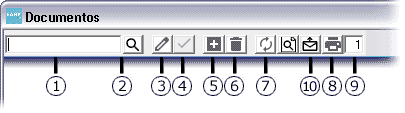
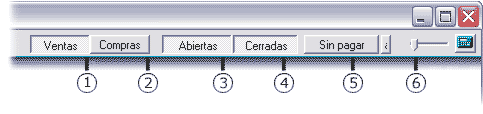


 para seleccionar un cliente o un proveedor.
 para abrir un documento nuevo.
 , o pulse la tecla de dirección hacia abajo o la tecla F2.
 o pulsando la tecla F10.
 o pulse la tecla F7.
 , en la hoja de un artículo, ocultará los precios de compra y venta, evitando así la curiosidad de ciertos clientes.